

Overview
The Video Popup widget in DesignSute allows you to display videos in a clean and engaging popup lightbox. Instead of embedding a full video directly on the page, you can use an attractive play button with text, icon, ripple effects, and custom styling to create a more interactive experience.
This widget is perfect for hero sections, promotional videos, product demos, testimonials, or background storytelling — all while keeping your layout clean and lightweight.
Key Features
- Play button with customizable text & icon
- Infinite ripple animation effect
- Spinner image support
- Flexible alignment control
- Video source support:
- YouTube
- Vimeo
- Self-hosted video
- Full styling controls
- Responsive and mobile-friendly
Ideal for:
- Hero section intro videos
- Product demo popups
- Promotional campaigns
- Case study presentations
- Landing page engagement
How to Activate the Video Popup Widget
Before using the Video Popup widget, make sure it is enabled from the DesignSute Dashboard.
Steps to Enable:
- Go to DesignSute → Dashboard → Widgets (Tab) in your WordPress dashboard.
- Find the Video Popup widget in the list.
- Toggle it ON to enable.
- Save changes if required.
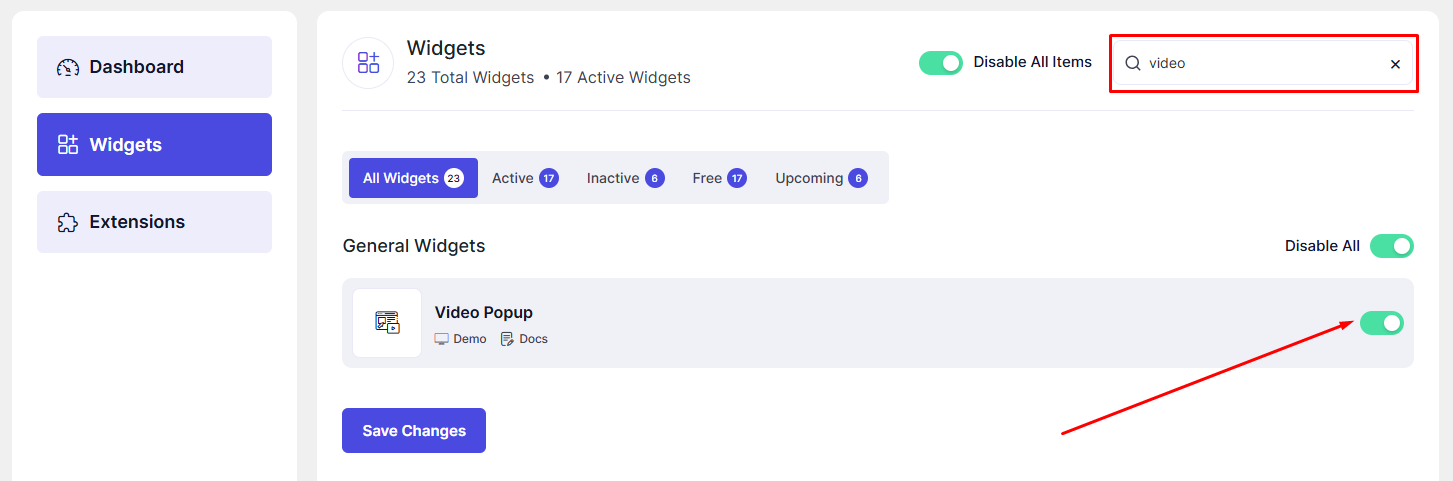
Now, the Video Popup widget is ready to use in Elementor.
How to Add a Video Popup Widget in Elementor
- Open your page in the Elementor Editor.
- Search for “Video Popup” in the Elementor panel under DesignSute widgets.
- Drag and drop the widget into your desired section or column.
- Configure the video source and design settings.
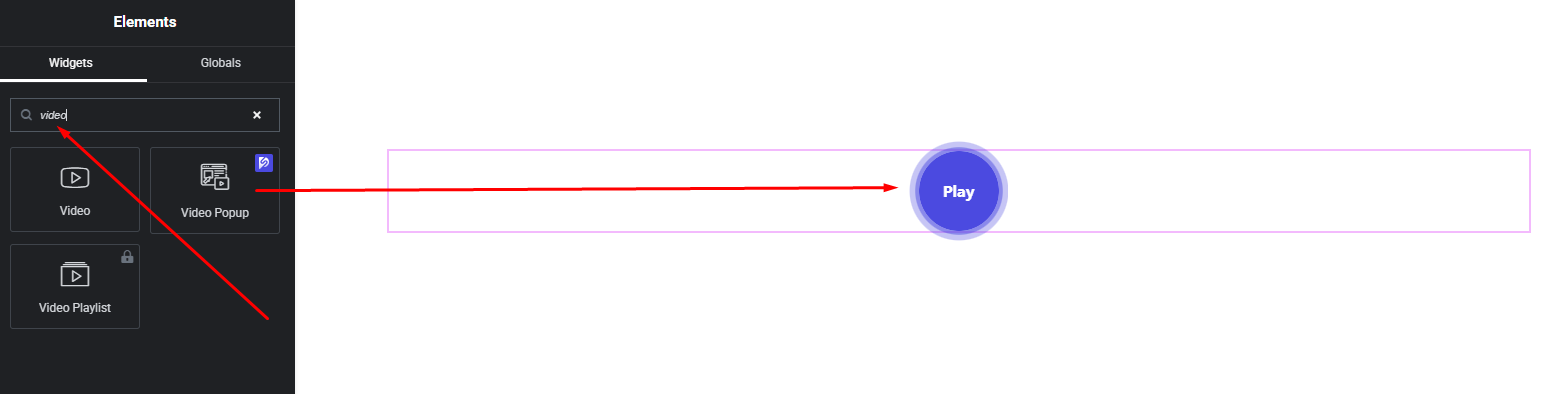
Your Video Popup widget is now added and ready to customize.
Content Settings
The Content tab allows you to configure the video source and button elements.
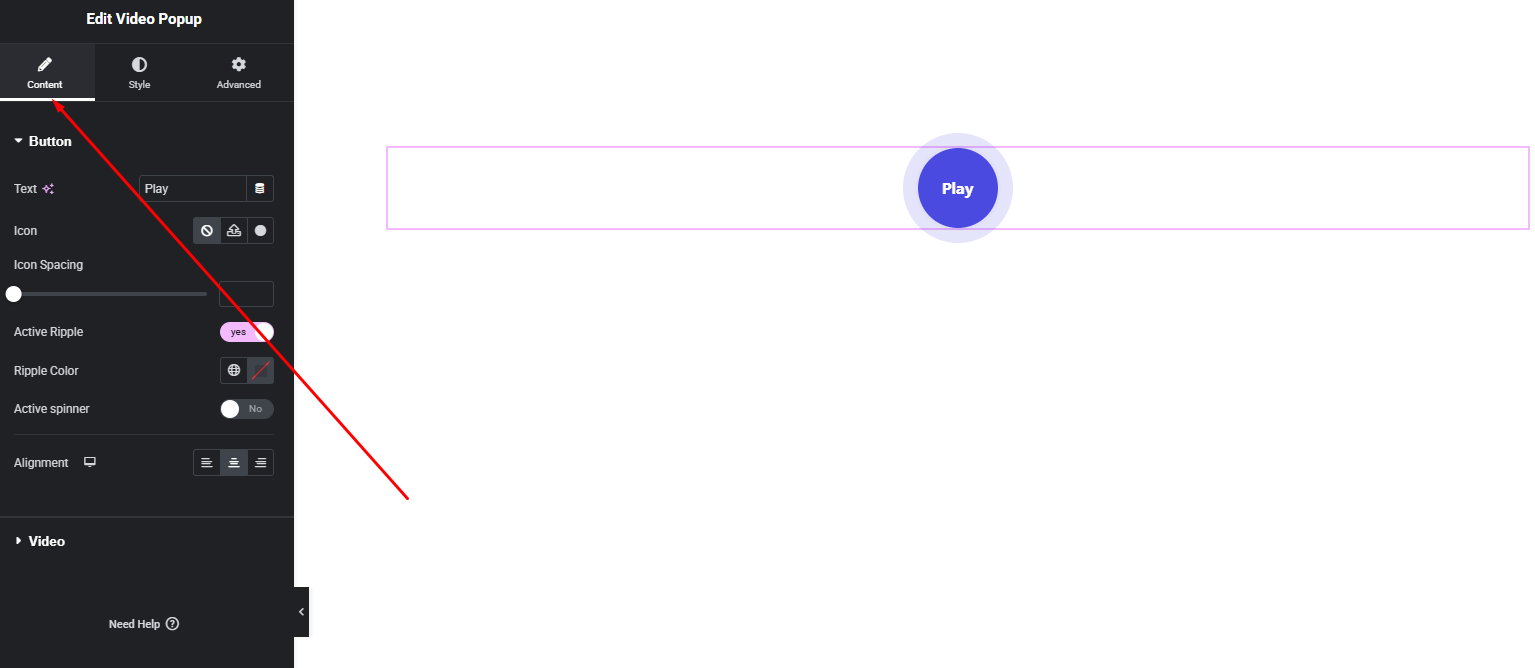
Available Options:
- Video Source – Choose the video type:
- YouTube
- Vimeo
- Self-Hosted
- Video URL – Paste your video link or upload your self-hosted file.
- Play Button Text – Add custom text next to or below the play button.
- Icon – Select an icon to display inside or alongside the button.
- Spinner Image – Upload a custom spinner/loading image if supported.
- Infinite Ripple – Enable animated ripple effect around the play button.
- Alignment – Align the video trigger left, center, or right.
These options help you create an interactive and engaging video trigger.
Style Settings
The Style tab gives you complete control over the visual appearance of the video button and effects.
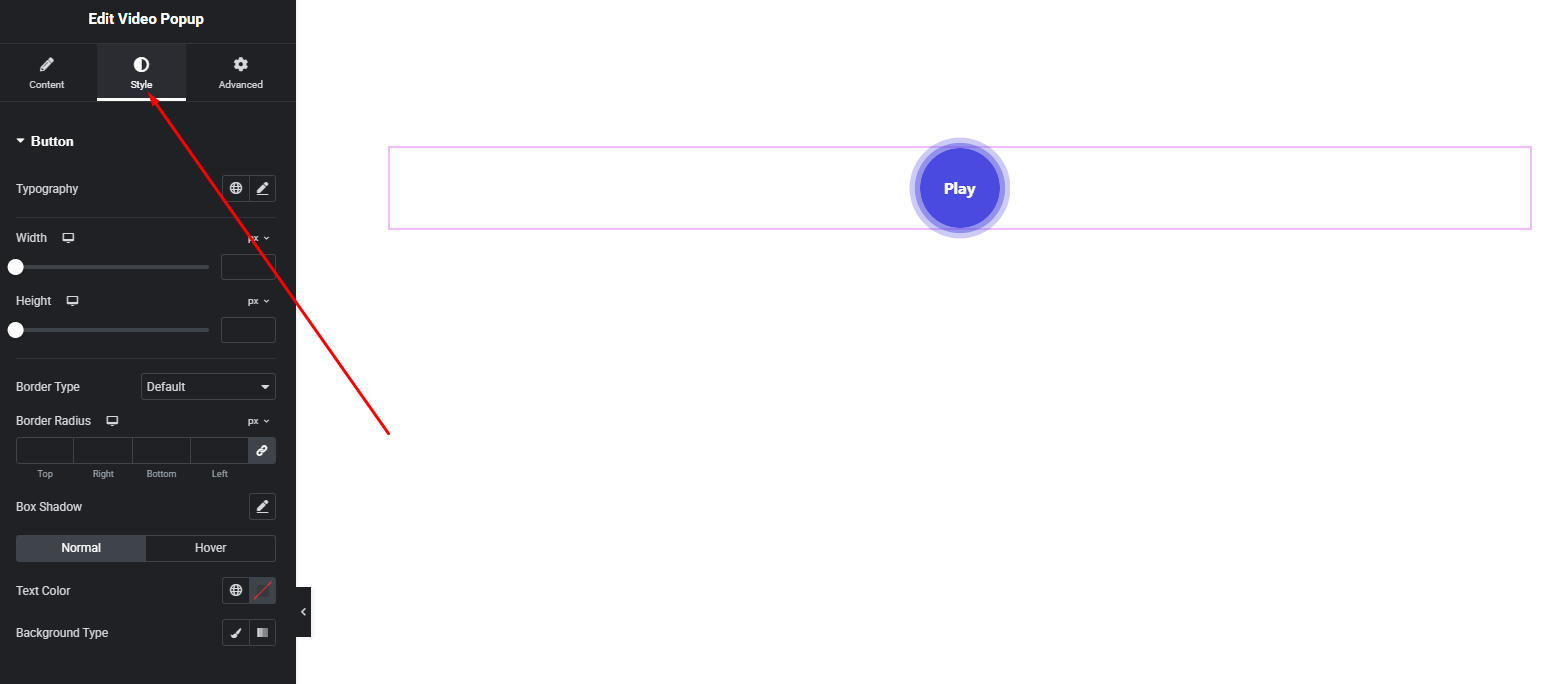
Play Button Style
- Button size
- Background color
- Icon size & color
- Border & radius
Text Style
- Typography (font family, size, weight, spacing)
- Text color
- Spacing between icon and text
These styling controls allow you to create a modern, minimal, bold, or cinematic video trigger design.
Advanced Settings
The Advanced tab includes additional customization options to enhance layout flexibility.
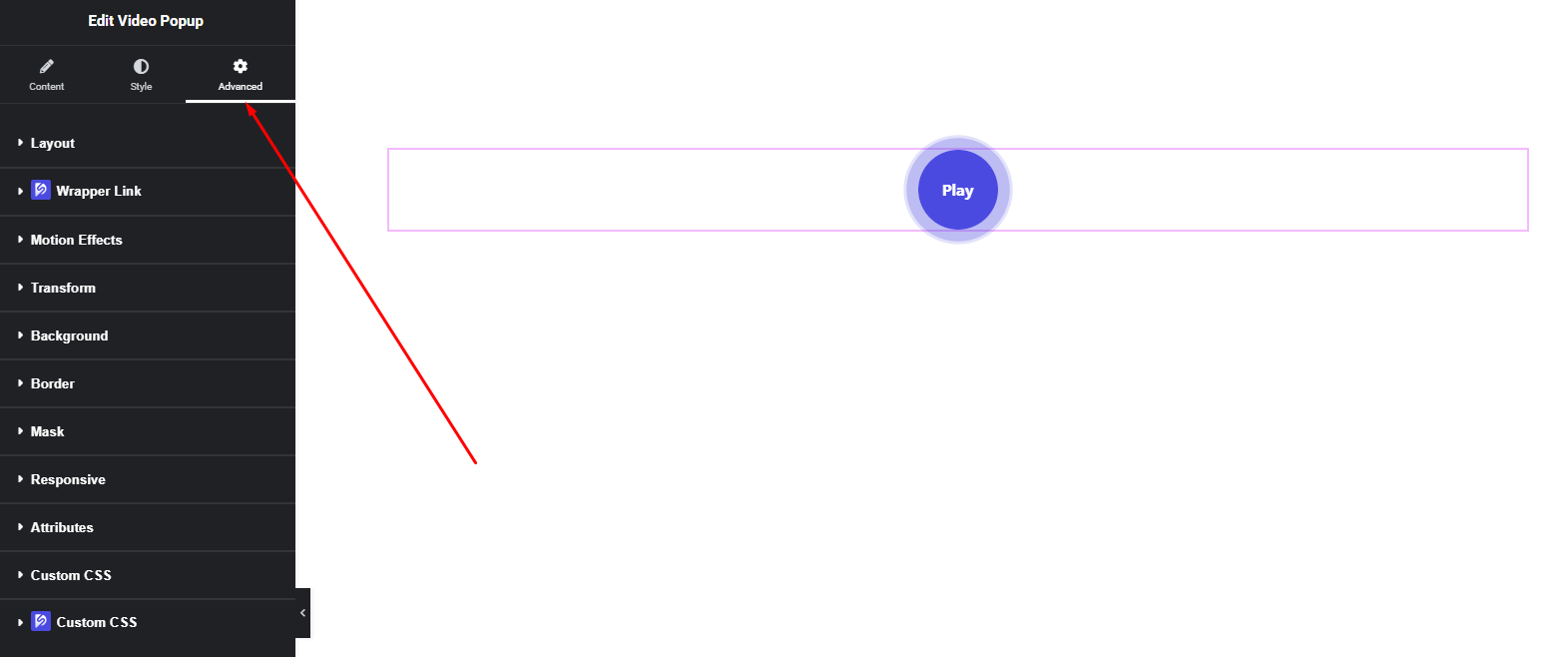
Here you can configure:
- Margin & Padding
- Motion effects
- Background options
- Responsive visibility
- Custom positioning
Use these options to perfectly position your video popup element within your layout.
Final Outcome
Congratulations! 🎉
You’ve successfully configured the DesignSute Video Popup Widget to create an engaging and interactive video experience. With ripple effects, customizable play buttons, and multiple video source options, your content will capture attention while keeping your layout clean and professional.
If you need further assistance, feel free to contact our support team.


