

Overview
The Social Icons widget in DesignSute allows you to display social media icons with full control over layout, colors, and styling. Using a repeater-based system, you can easily add multiple social icons, assign custom links, and choose between global or per-icon color settings.
Whether you’re adding social links to headers, footers, team sections, or call-to-action areas, this widget helps you create clean, consistent, and clickable social icon layouts.
Key Features
- Repeater-based social icon list
- Individual icon link support
- Alignment control
- Direction control (Row or Column)
- Color modes:
- Global color
- Custom color per icon
- Complete styling options
- Fully responsive design
Perfect for:
- Header & footer social links
- Team member profiles
- Contact sections
- Sidebar widgets
- Call-to-action areas
How to Activate the Social Icons Widget
Before using the Social Icons widget, make sure it is enabled from the DesignSute Dashboard.
Steps to Enable:
- Go to DesignSute → Dashboard → Widgets (Tab) in your WordPress dashboard.
- Locate the Social Icons widget in the list.
- Toggle it ON to enable the widget.
- Save changes if required.
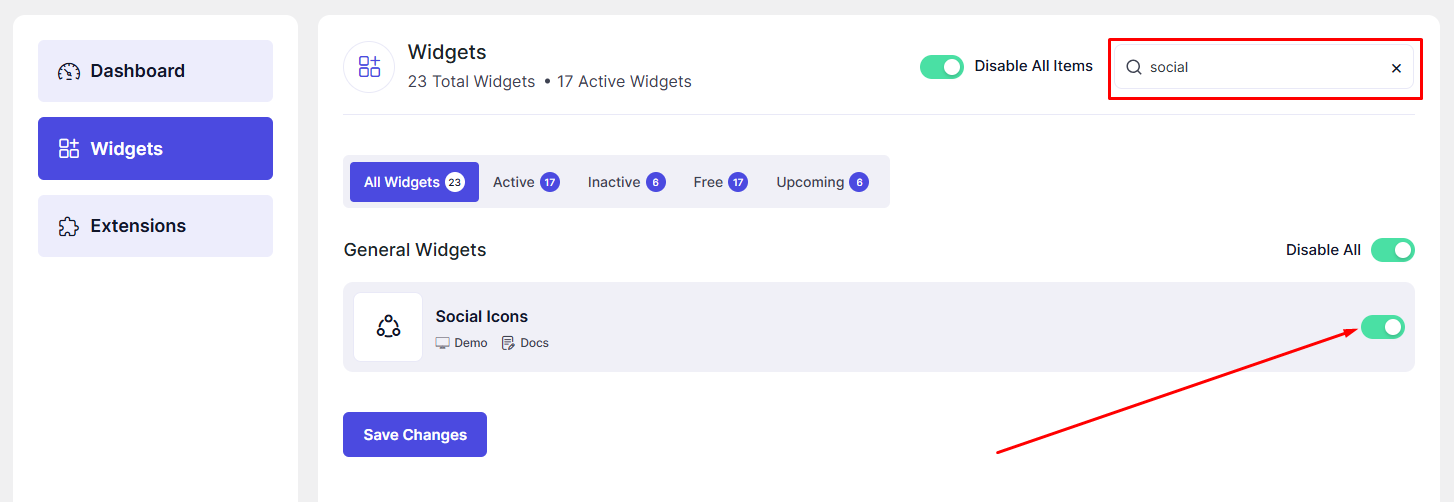
Now, the Social Icons widget is ready to use in Elementor.
How to Add a Social Icons Widget in Elementor
- Open your page in the Elementor Editor.
- Search for “Social Icons” in the Elementor panel under DesignSute widgets.
- Drag and drop the widget into your desired section or column.
- Start adding icons and links using the repeater options.
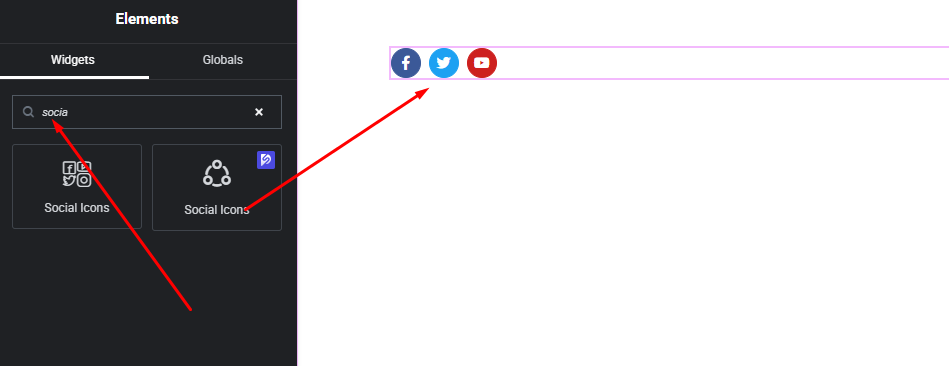
Your Social Icons widget is now added and ready to customize.
Content Settings
The Content tab allows you to manage icons, links, and layout structure.
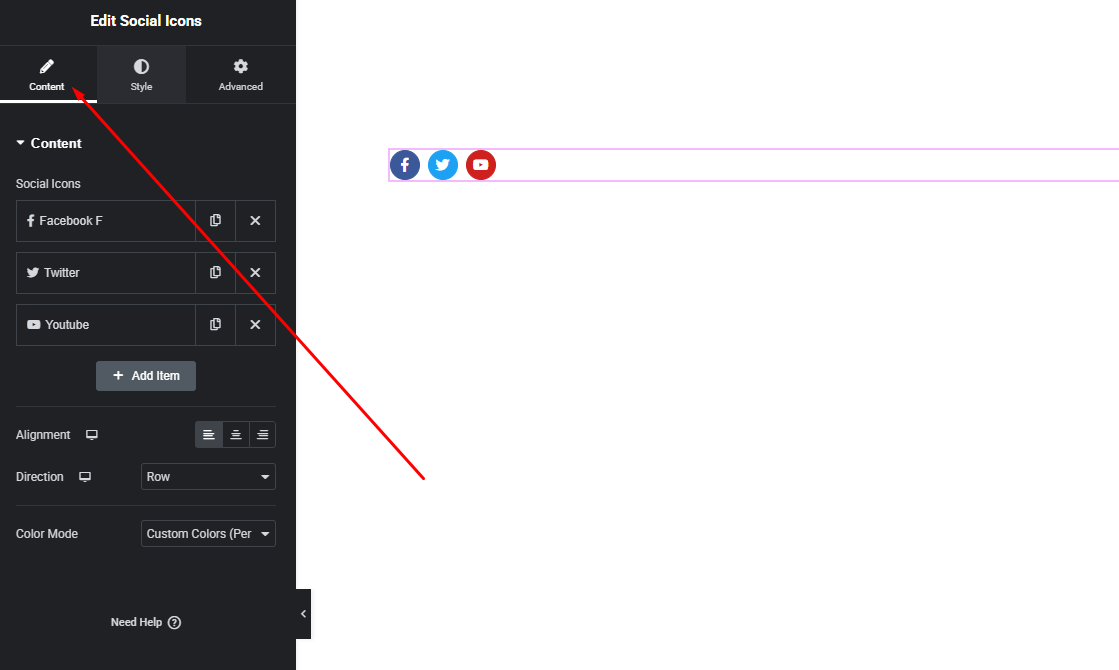
Available Options:
- Icons Repeater – Add multiple social icons using the repeater. For each icon, you can:
- Select the social icon
- Add a custom link (URL)
- Alignment – Align the icons:
- Left
- Center
- Right
- Direction – Choose how icons are displayed:
- Row (horizontal)
- Column (vertical)
- Color Mode – Choose how icon colors are applied:
- Global – One color applies to all icons
- Custom (Per Icon) – Set individual colors for each icon
These options allow you to build flexible and well-structured social icon layouts.
Style Settings
The Style tab gives you full control over the appearance of the social icons.
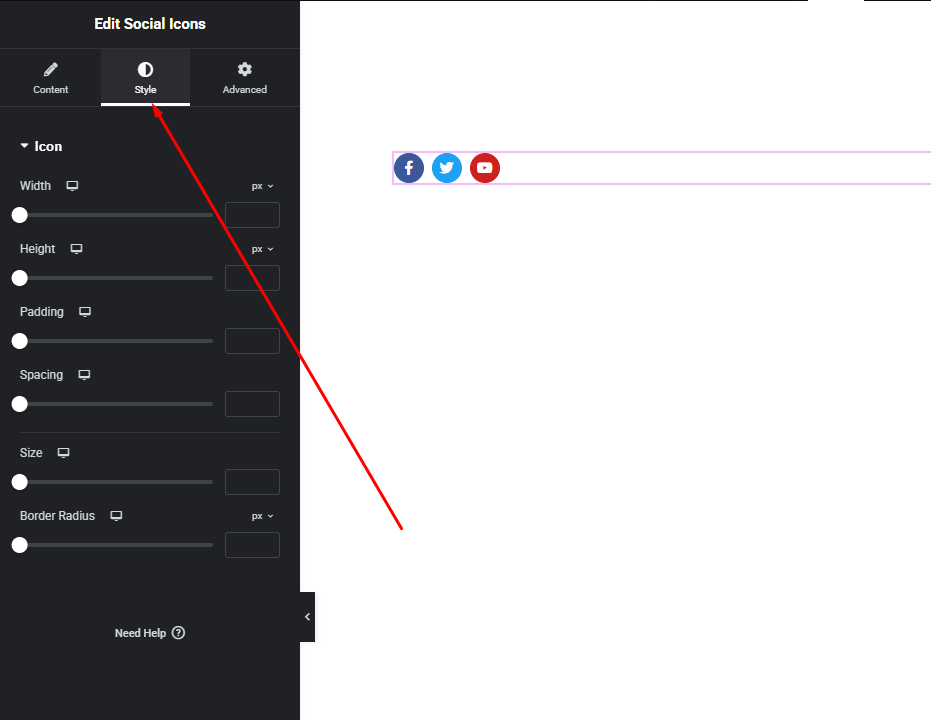
Icon Style
- Icon size
- Icon color (Normal & Hover)
- Background color
- Border & radius
Spacing
- Space between icons
- Padding inside icons
Hover Effects
- Hover color transitions
- Background hover effects
With these styling controls, you can create minimal, modern, or branded social icon designs.
Advanced Settings
The Advanced tab provides additional layout and responsive controls.
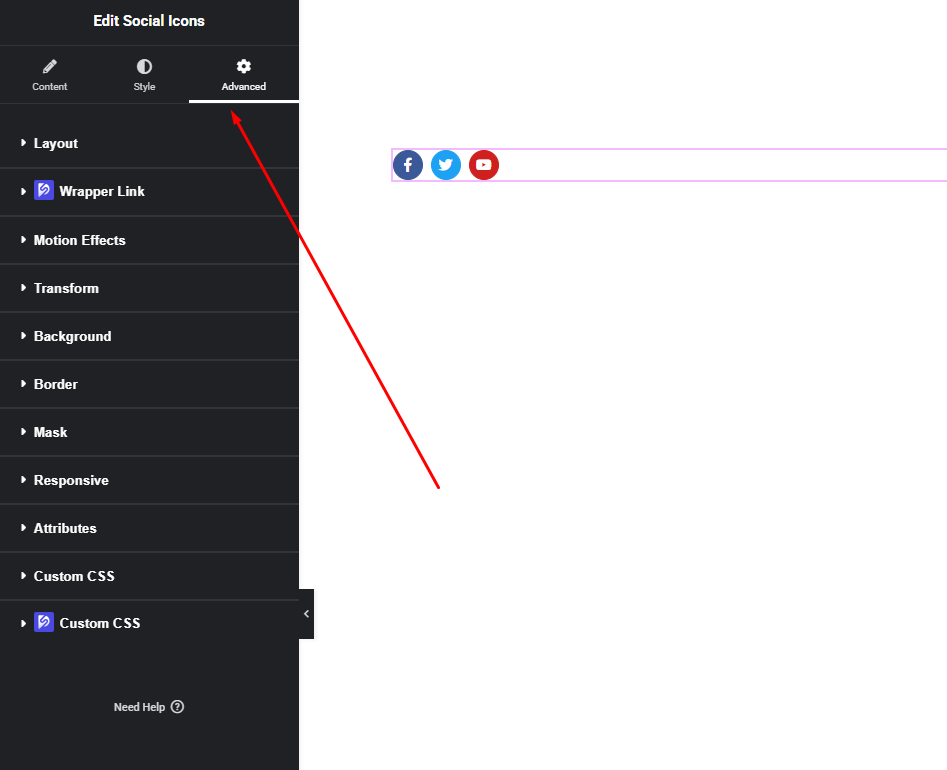
You can configure:
- Margin & Padding
- Responsive visibility
- Motion effects
- Background options
- Custom positioning
Use these options to fine-tune placement and ensure consistent appearance across devices.
Final Outcome
Congratulations! 🎉
You’ve successfully configured the DesignSute Social Icons Widget to display clean, clickable, and beautifully styled social media links. With repeater support, flexible layout options, and advanced color control, you can easily integrate social icons anywhere on your website.
If you need any further assistance, feel free to contact our support team.


