

Overview
The Site Logo widget lets you display your website logo with full flexibility and styling control. You can use either the global Site Logo set in WordPress or upload a Custom Logo directly inside the widget. It’s perfect for headers, footers, off-canvas menus, or branding sections built with Elementor.
With options like image resizing, custom links, captions, and advanced styling, this widget ensures your brand identity stays sharp and consistent across the site.
Key Features
- Logo source selection (Site Logo or Custom Image)
- Image resizing controls
- Custom link support
- Optional caption
- Full style customization
- Fully responsive
Ideal for:
- Website headers
- Sticky headers
- Footers
- Landing pages
- Brand sections
How to Activate the Site Logo Widget
Before using the widget, make sure it’s enabled from the DesignSute Dashboard.
Steps to Enable:
- Go to DesignSute → Dashboard → Widgets (Tab) in your WordPress admin.
- Find the Site Logo widget.
- Toggle it ON.
- Save changes if required.
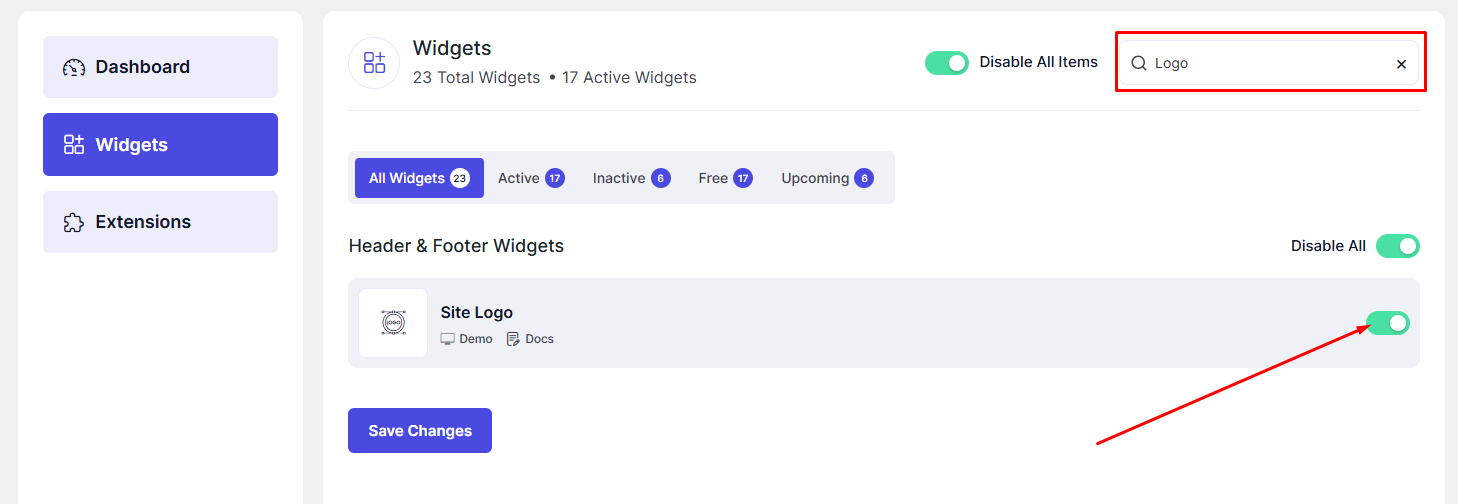
Once enabled, the widget will appear in the Elementor editor.
How to Add the Site Logo Widget in Elementor
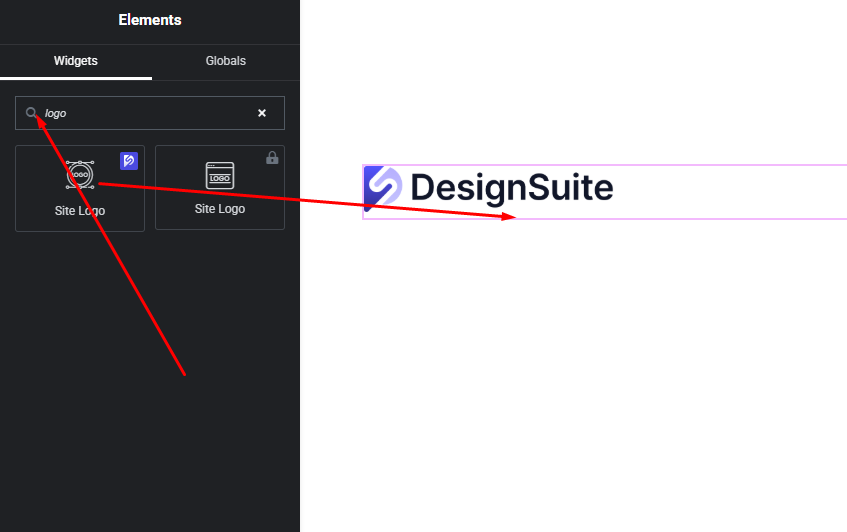
- Open your page with Elementor Editor.
- Search for “Site Logo” in the widget panel.
- Drag and drop it into your desired section or column.
- Configure the logo source and settings.
Content Settings
The Content tab controls the logo source, link, and basic structure.
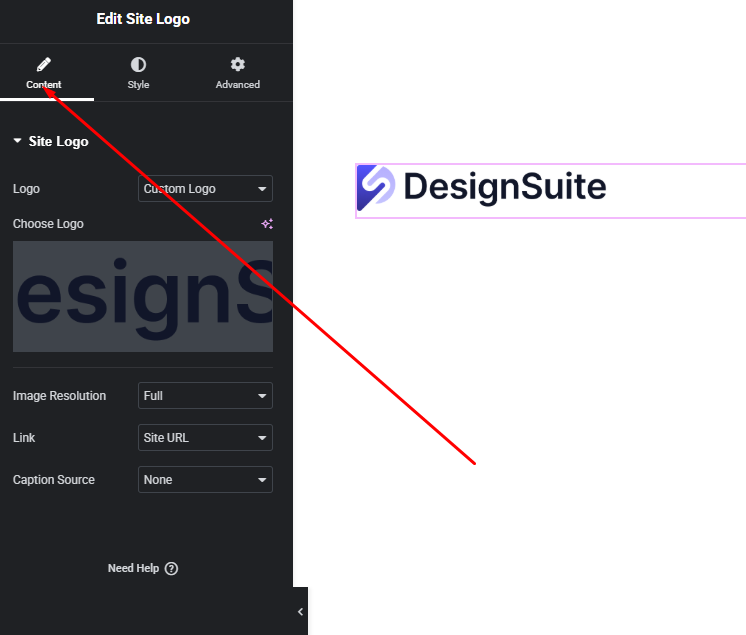
Available Options:
- Logo Source
- Site Logo – Uses the logo set in Appearance → Customize → Site Identity.
- Custom Logo – Upload a custom image directly in the widget.
- Image Resolution
- Adjust width and max-width
- Maintain aspect ratio for sharp display
- Link
- Default: links to homepage
- Custom URL support
- Option to open link in a new tab
- Caption
- Enable or disable logo caption
- Custom caption text
These settings give you full control over how and where your logo is displayed.
Style Settings
The Style tab lets you visually customize the logo and caption.
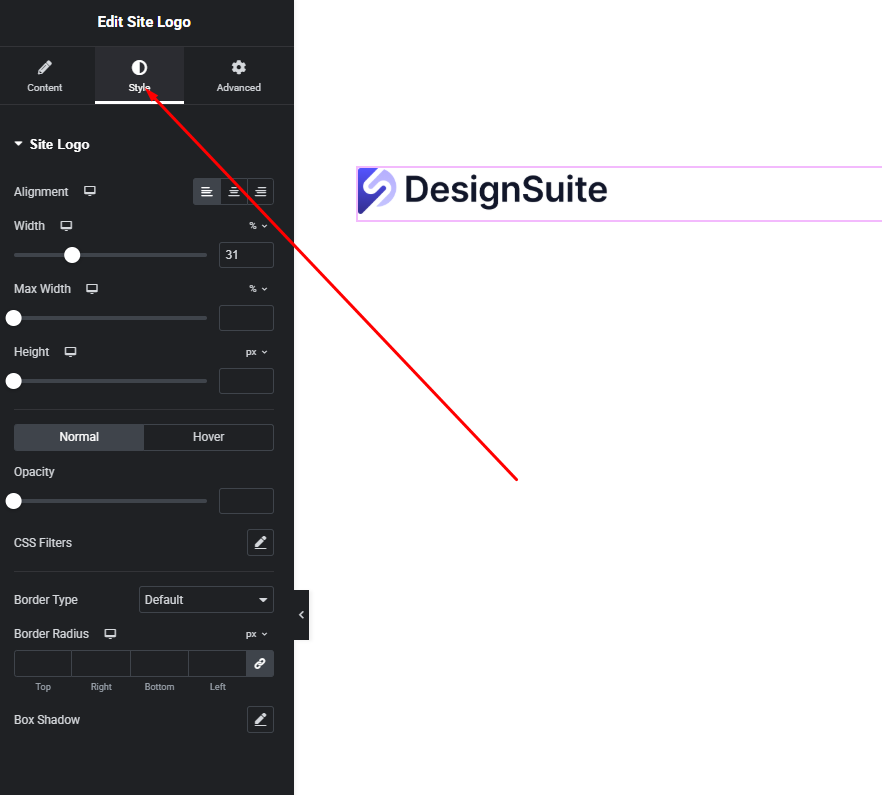
Logo Style
- Width & max-width
- Alignment (left, center, right)
- Border & border radius
- Background color
- Box shadow
Caption Style
- Typography (font family, size, weight)
- Text color
- Spacing (margin & padding)
- Alignment
With these options, you can match the logo perfectly with your header or brand design.
Advanced Settings
The Advanced tab provides additional layout and responsive controls.
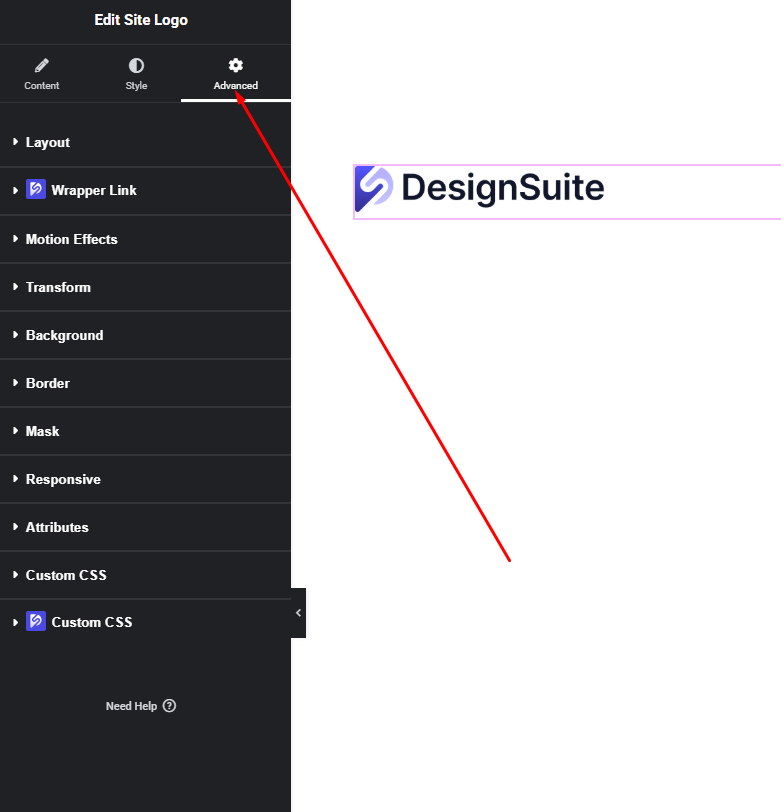
You can customize:
- Margin & padding
- Background & borders
- Motion effects
- Responsive visibility
- Custom positioning
These options help you fine-tune spacing and behavior across devices.
Final Outcome
🎉 That’s it!
You’ve successfully set up the DesignSute Site Logo Widget to display your brand logo exactly the way you want. Whether you’re using the global site logo or a custom image, this widget ensures consistent branding with full design freedom.
If you need help with headers or advanced logo layouts, feel free to ask—happy to help!


