

Overview
The Search Query widget dynamically displays the search results title on your search results pages. For example, when a visitor searches for “test,” it will automatically show:
This widget is ideal for Search Results templates in the DesignSute Theme Builder, giving visitors clear context for their search.
Key Features
- Dynamic search query output
- Works inside Theme Builder templates
- Automatically shows the searched term
- HTML tag selection (H1, H2, H3, etc.)
- Alignment and style options
- Fully responsive
Perfect for:
- Search Results page templates
- Blog or product search results
- Custom post type search templates
How to Activate the Search Query Widget
- Go to DesignSute → Dashboard → Widgets (Tab)
- Find Search Query in the widget list
- Toggle it ON
- Save changes if needed
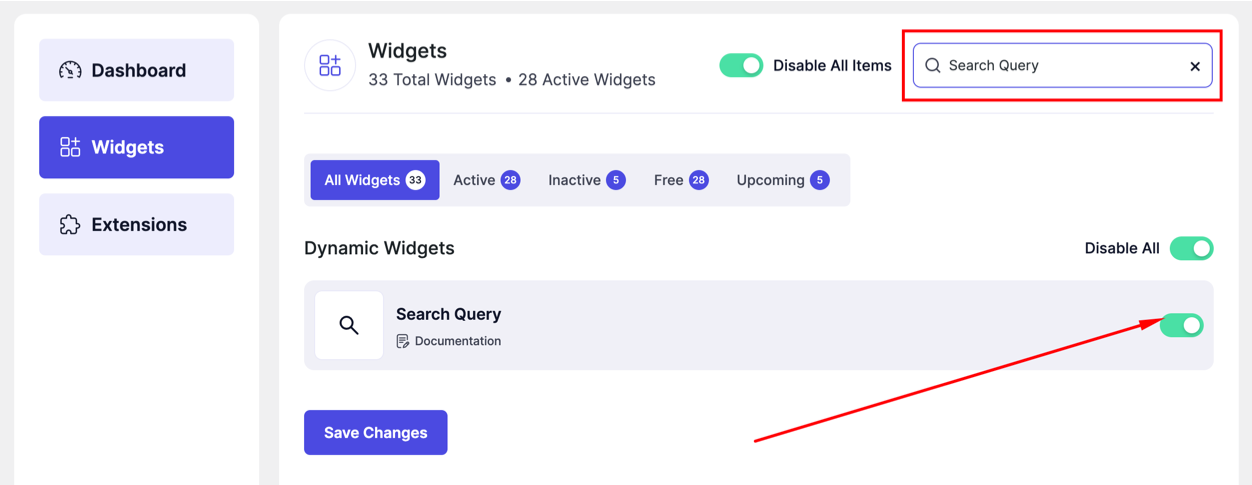
How to Add the Search Query Widget
- Go to DesignSute → Theme Builder
- Create or edit a Search Results template
- Open with Elementor Editor
- Search for Search Query
- Drag and drop the widget into your template

Content Settings
📸 Screenshot: Search Query → Content Settings
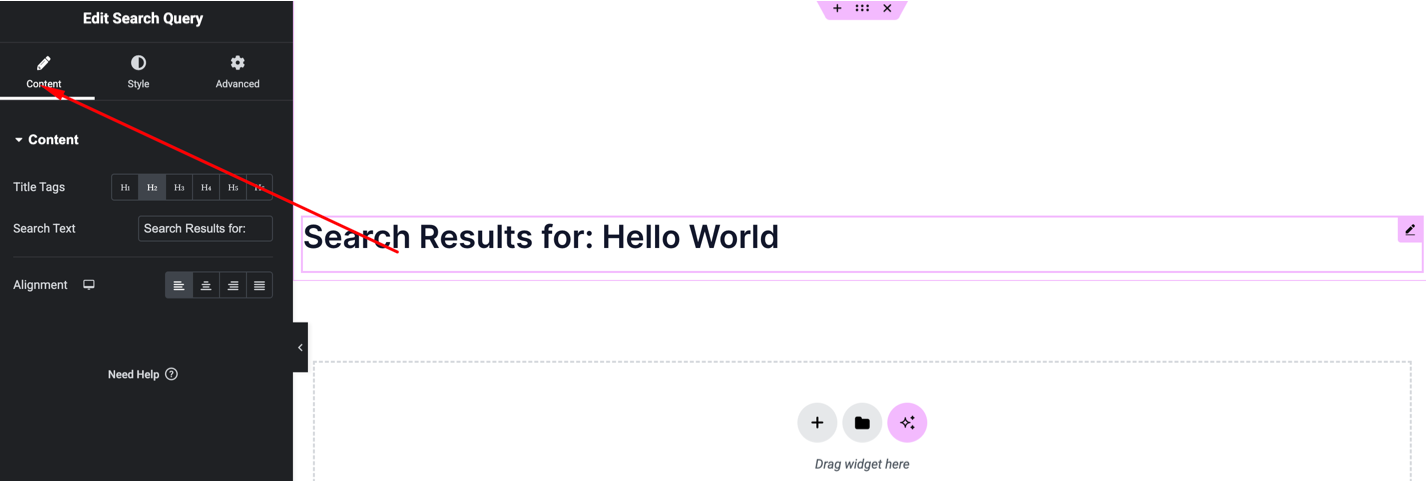
Available options:
- HTML Tag – Choose heading tag (H1, H2, H3, etc.)
- Alignment – Left, Center, Right
- Prefix / Suffix – Optional text before or after the dynamic search query
The widget will automatically display the correct search term entered by the visitor.
Style Settings
📸 Screenshot: Search Query → Style Settings
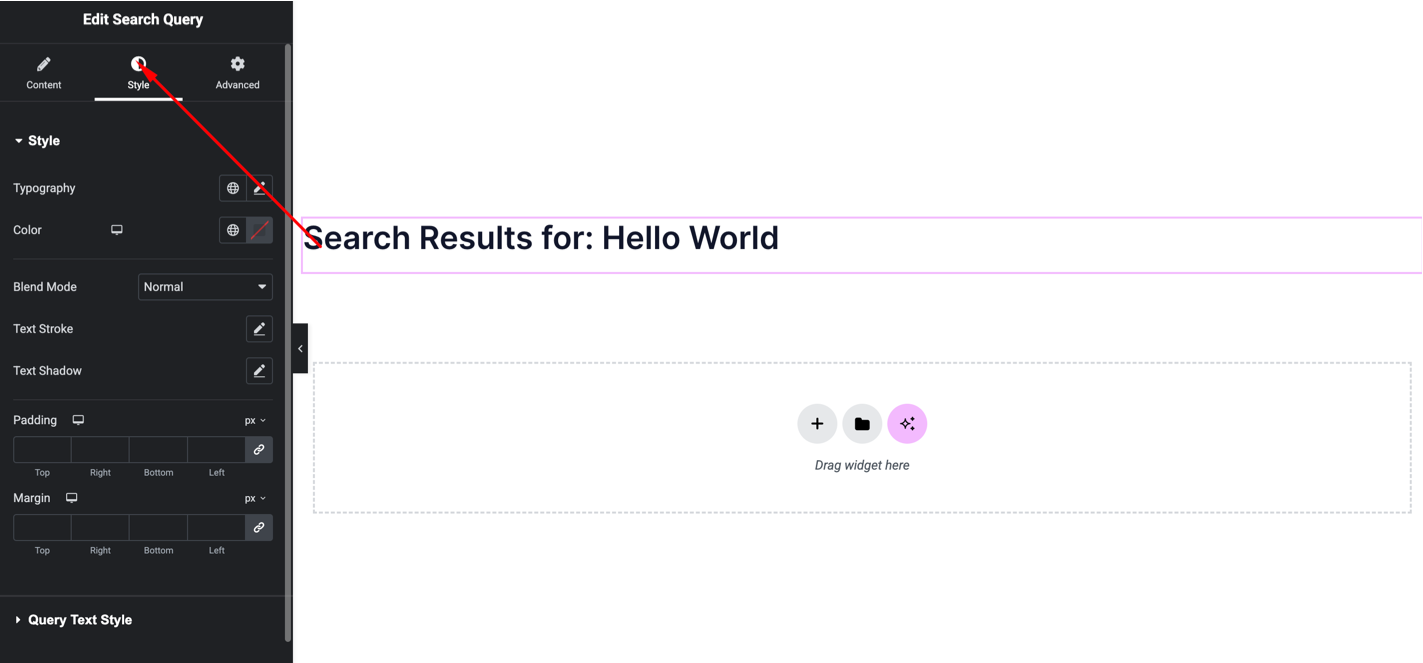
You can customize:
- Typography (font, weight, size)
- Text color
- Text shadow or stroke
- Alignment
- Spacing
These settings help match the search results title with your template design.
Advanced Settings
📸 Screenshot: Search Query → Advanced Settings
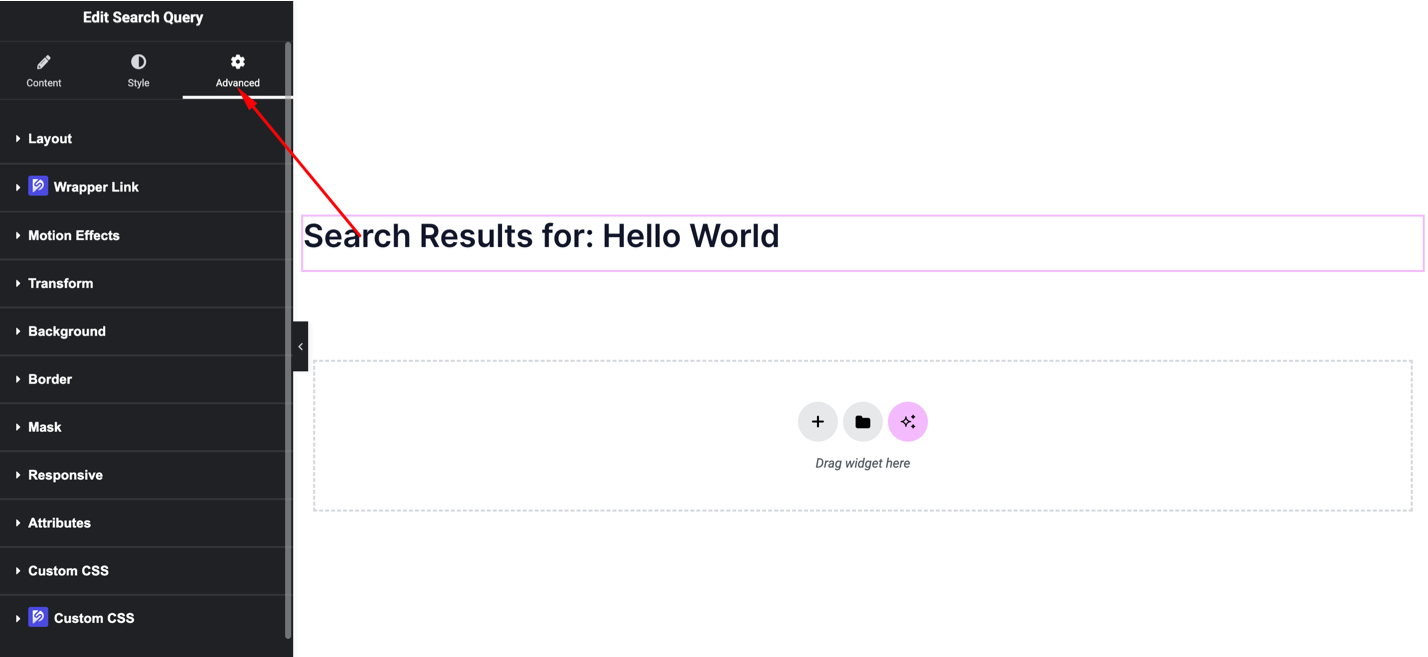
Includes:
- Margin & padding
- Background
- Motion effects
- Responsive visibility
Final Outcome
🎉 You’ve successfully added the Search Query widget to your Search Results template.
Now, each search results page will dynamically display the searched term, providing clear feedback to your visitors.


