

Overview
The Counter widget in DesignSute allows you to display animated numbers that highlight key statistics, achievements, or milestones on your website. Whether you’re showcasing completed projects, happy clients, years of experience, or performance metrics, this widget helps you present numbers in an engaging and visually appealing way.
With support for prefixes, suffixes, titles, layout direction, alignment, and full styling controls, you can easily create professional counter sections that capture attention.
Key Features
- Animated counter number
- Prefix and suffix support
- Title text support
- Direction control (Row or Column)
- Alignment options
- Full styling controls
- Fully responsive design
Perfect for:
- Achievement counters
- Statistics sections
- Company milestones
- Fact highlights
- Homepage number showcases
How to Activate the Counter Widget
Before using the Counter widget, make sure it is enabled from the DesignSute Dashboard.
Steps to Enable:
- Go to DesignSute → Dashboard → Widgets (Tab) in your WordPress dashboard.
- Locate the Counter widget.
- Toggle it ON to enable the widget.
- Save changes if required.
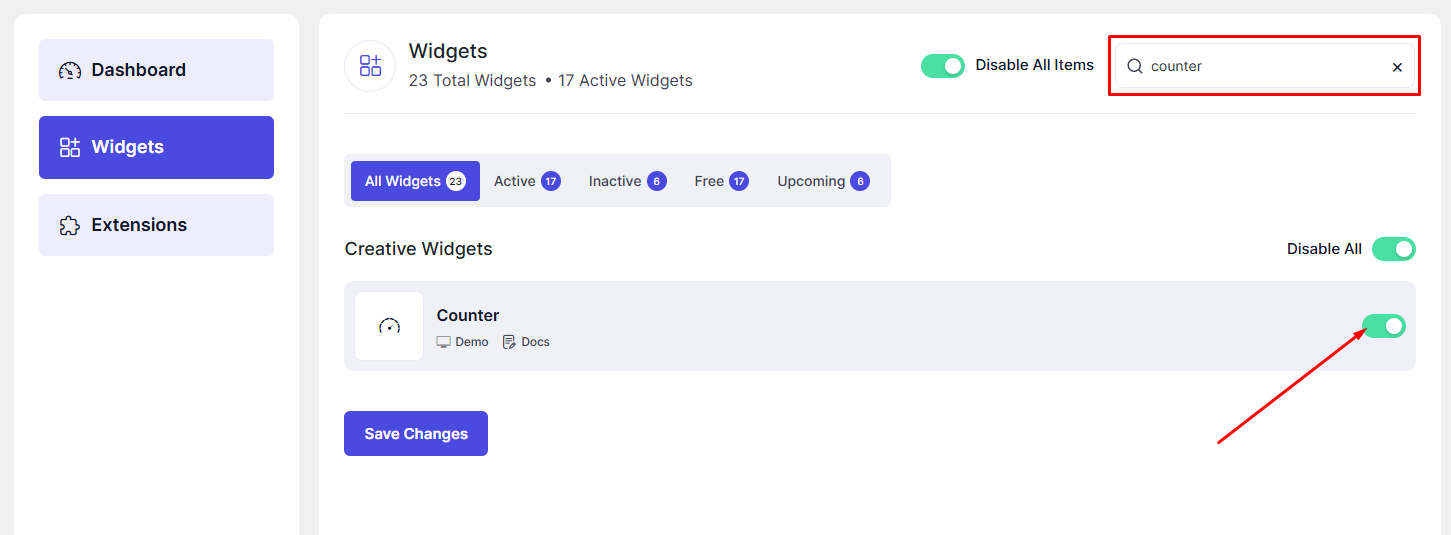
Now, the Counter widget is ready to use in Elementor.
How to Add a Counter Widget in Elementor
- Open your page in the Elementor Editor.
- Search for “Counter” in the Elementor panel under DesignSute widgets.
- Drag and drop the widget into your desired section or column.
- Configure the counter values and layout settings.
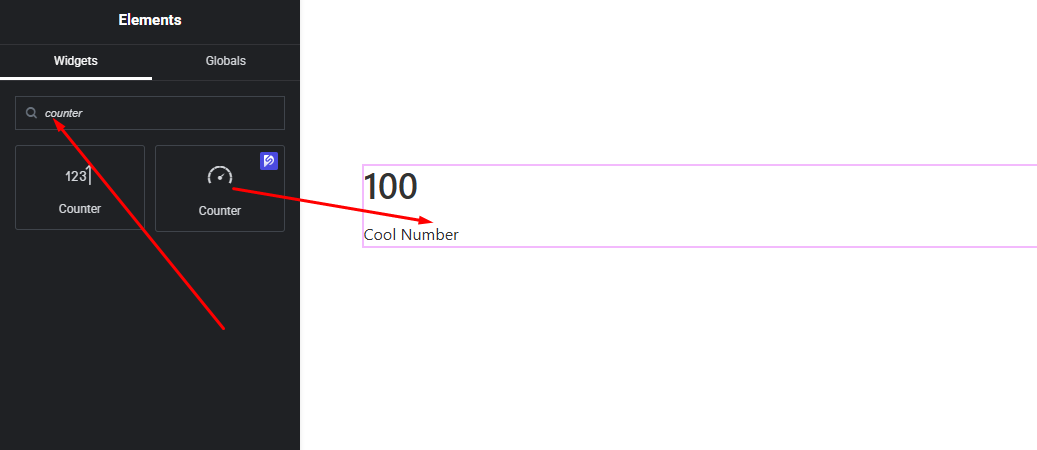
Your Counter widget is now added and ready to customize.
Content Settings
The Content tab allows you to configure the counter structure and values.
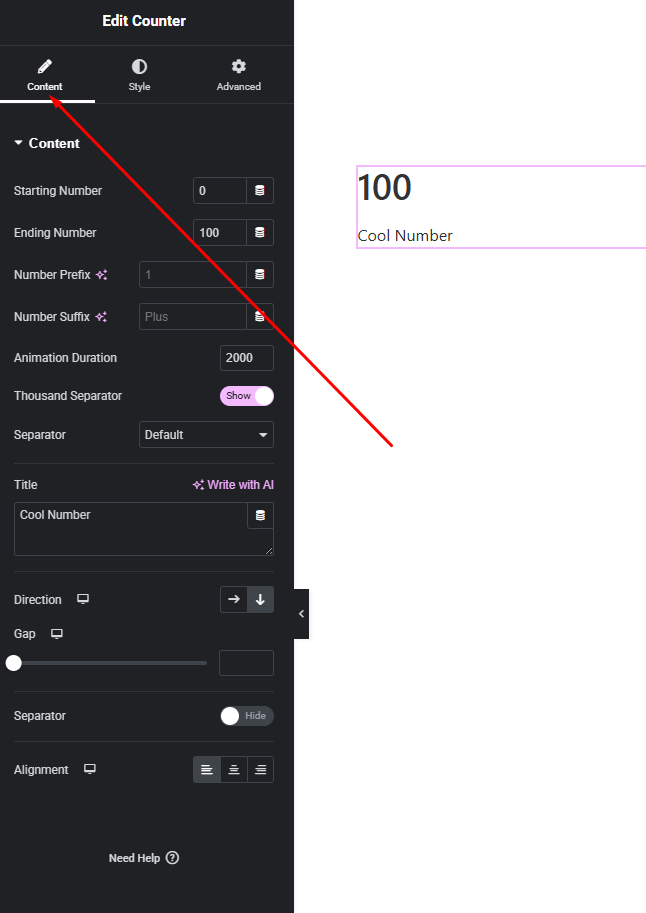
Available Options:
- Counter Number – Set the numeric value to be displayed and animated.
- Prefix – Add text or symbols before the number (e.g.,
$,+). - Suffix – Add text or symbols after the number (e.g.,
%,K). - Title – Add a label or description below or beside the counter number.
- Direction – Choose how the counter elements are arranged:
- Row (number and title side by side)
- Column (number above title)
- Alignment – Align the counter left, center, or right within its container.
These options help you structure clean and readable counter layouts.
Style Settings
The Style tab gives you full control over the appearance of the counter elements.
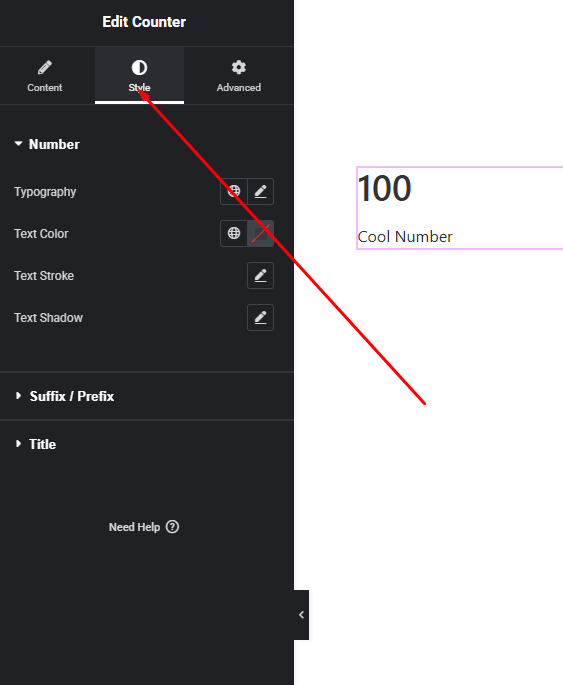
Number Style
- Typography (font family, size, weight, spacing)
- Number color
Prefix & Suffix Style
- Typography
- Color
- Spacing
Title Style
- Typography
- Text color
- Spacing
These styling options allow you to match the counter design with your website’s branding.
Advanced Settings
The Advanced tab provides additional layout and responsive customization options.
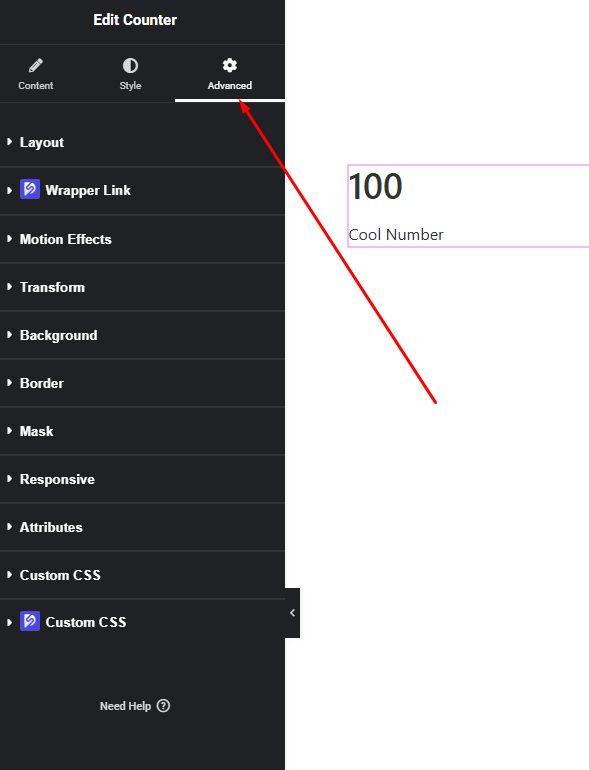
You can configure:
- Margin & Padding
- Background & border settings
- Motion effects
- Responsive visibility
- Custom positioning
Use these options to fine-tune spacing and layout behavior across devices.
Final Outcome
Congratulations! 🎉
You’ve successfully configured the DesignSute Counter Widget to create dynamic and visually engaging number displays. With flexible layout direction, prefix/suffix support, and full styling controls, you can now highlight your key statistics and achievements with confidence.
If you need further assistance, feel free to reach out to our support team.


