

Overview
The Post Grid widget in DesignSute allows you to display posts in a clean, structured grid layout with powerful query and pagination options. Whether you want to showcase blog posts, custom post types, archive pages, or related content, this widget gives you full control over layout, content query, and styling.
With flexible column settings, multiple query types, and built-in pagination support, you can easily create dynamic and professional content sections anywhere on your website.
Key Features
- Adjustable column settings
- Custom gap control between items
- Query types:
- Custom
- Archive
- Related
- Supports all post types
- Advanced query settings
- Pagination support
- Full styling controls
- Fully responsive design
Perfect for:
- Blog post grids
- Portfolio layouts
- News sections
- Archive pages
- Related posts sections
How to Activate the Post Grid Widget
Before using the Post Grid widget, make sure it is enabled from the DesignSute Dashboard.
Steps to Enable:
- Go to DesignSute → Dashboard → Widgets (Tab) in your WordPress dashboard.
- Locate the Post Grid widget.
- Toggle it ON to enable the widget.
- Save changes if required.
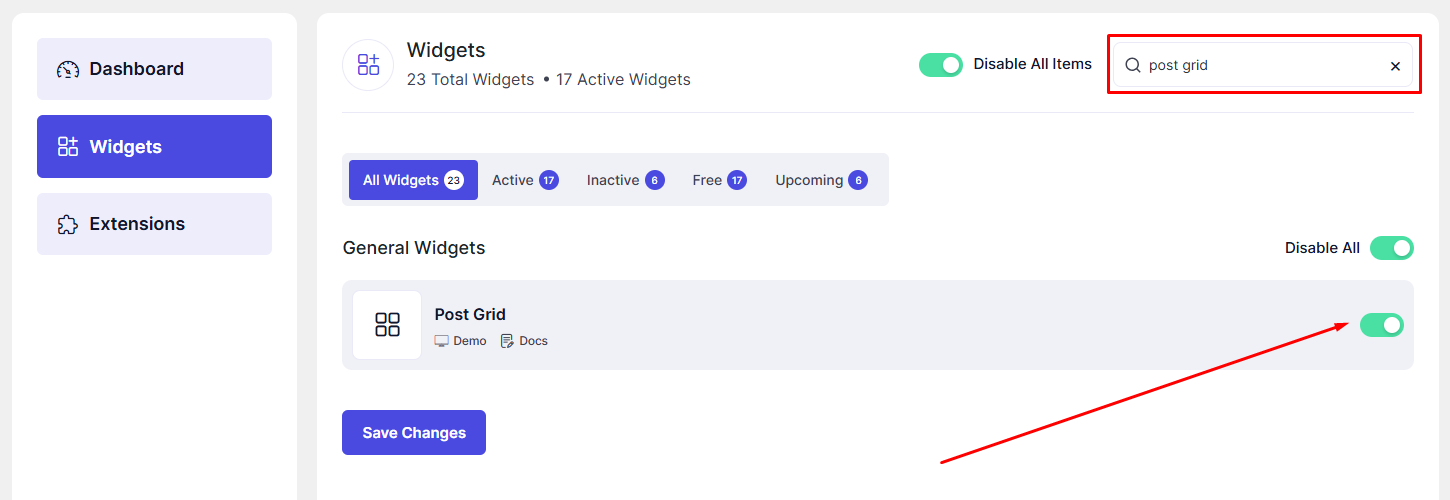
Now, the Post Grid widget is ready to use in Elementor.
How to Add a Post Grid Widget in Elementor
- Open your page in the Elementor Editor.
- Search for “Post Grid” in the Elementor panel under DesignSute widgets.
- Drag and drop the widget into your desired section or column.
- Configure the layout and query settings in the Content tab.
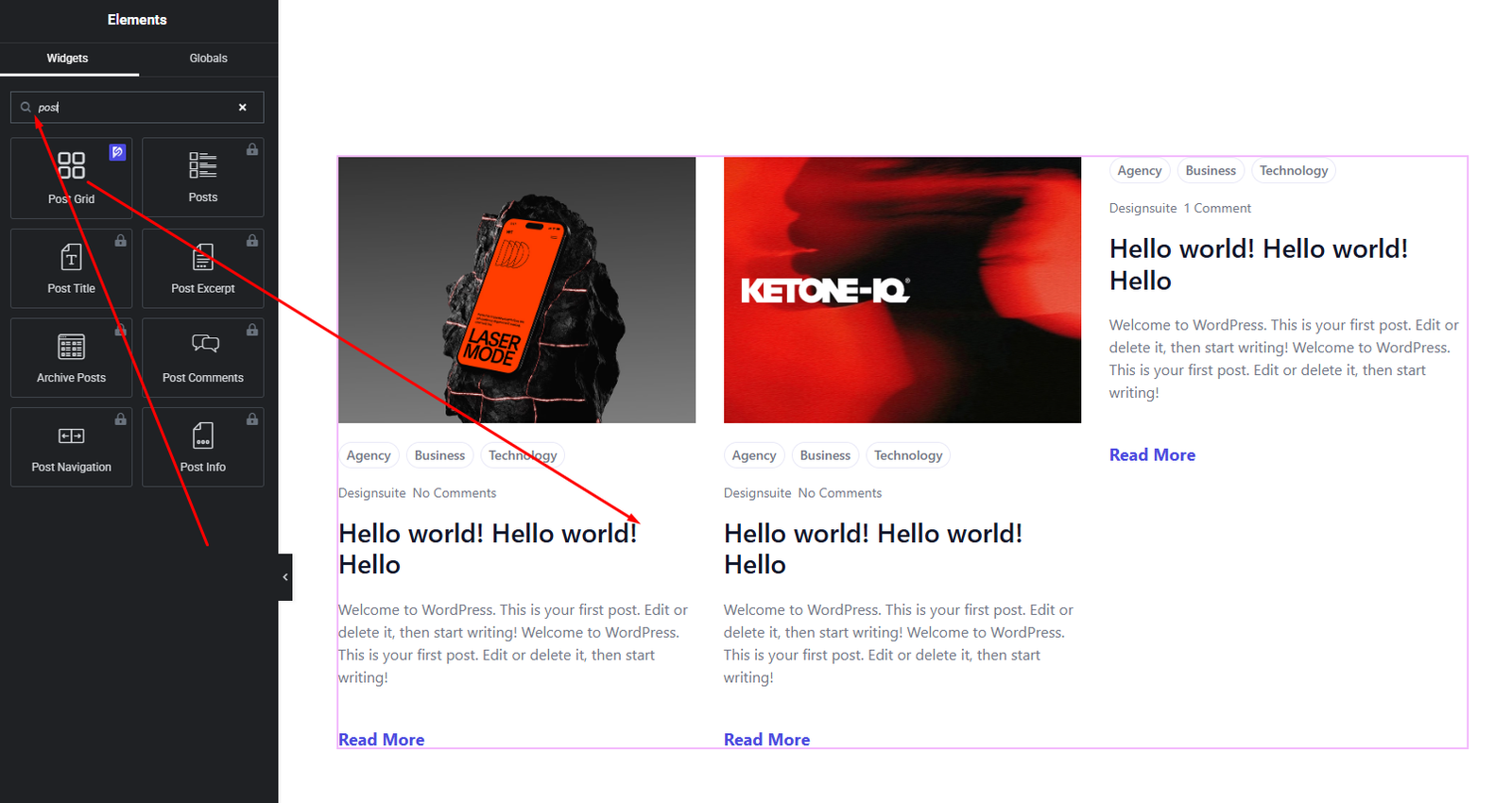
Your Post Grid widget is now added and ready to customize.
Content Settings
The Content tab allows you to configure layout structure and post query settings.
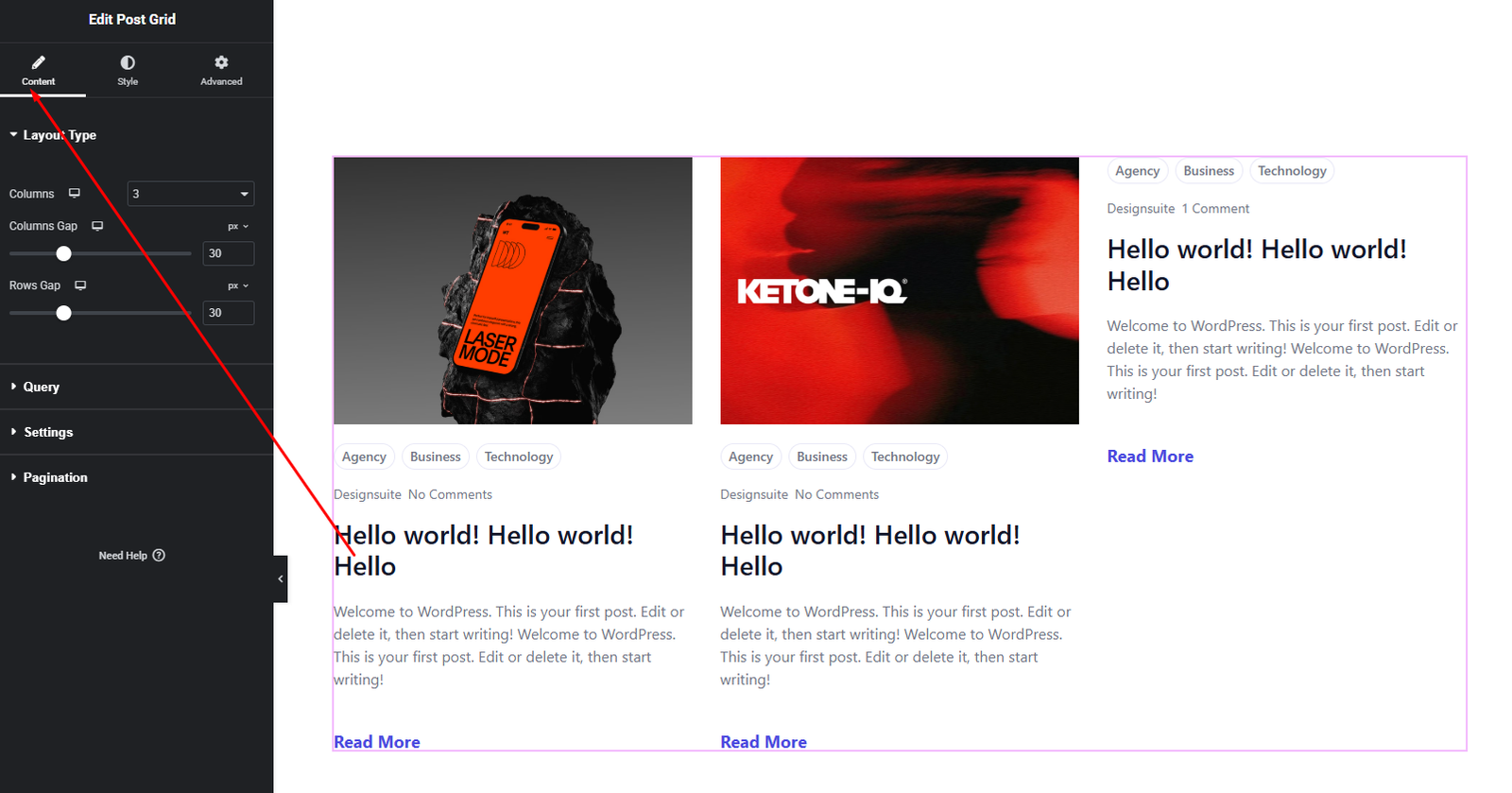
Layout Options:
- Columns – Set the number of columns for desktop, tablet, and mobile devices.
- Gap – Adjust spacing between grid items.
Query Type
Choose how posts are selected:
- Custom – Manually define post type, categories, tags, number of posts, and order.
- Archive – Automatically display posts based on the current archive page.
- Related – Show posts related to the current post (based on categories or tags).
Post Type Support
You can select from all available post types, including:
- Default posts
- Pages
- Custom post types (if registered)
Additional Settings
Depending on query type, you may configure:
- Order & Order By
- Include / Exclude terms
- Number of posts
- Offset
Pagination
Enable pagination to allow users to navigate through multiple pages of posts.
These options give you full control over how content is fetched and displayed.
Style Settings
The Style tab provides full control over the appearance of the grid items.
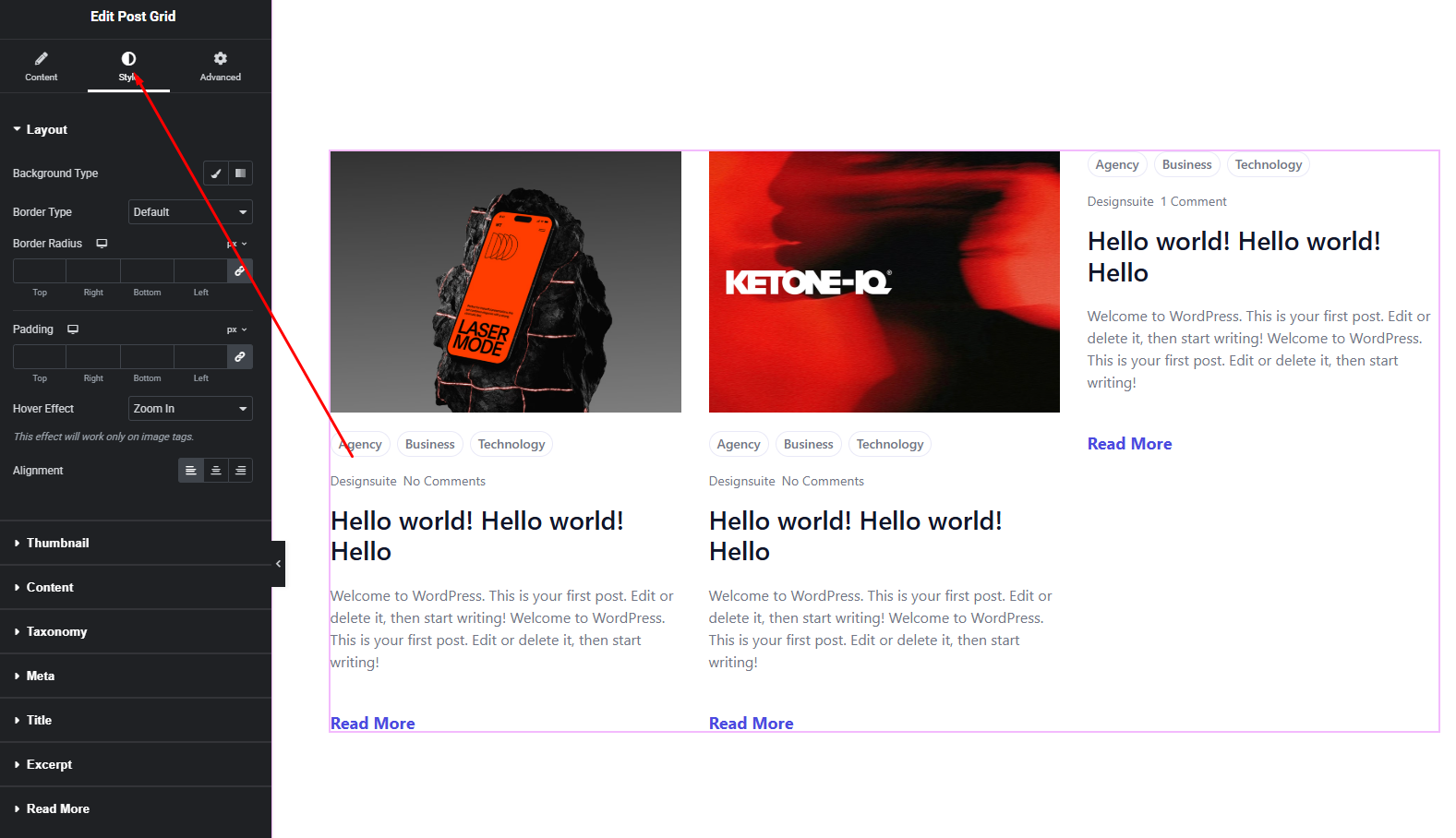
Item Style
- Background color
- Border & radius
- Box shadow
- Padding
Image Style
- Image size
- Border radius
- Spacing
Content Style
- Title typography & color
- Meta text styling
- Excerpt typography & color
Pagination Style
- Alignment
- Typography
- Button colors (normal & hover)
- Spacing
These styling controls allow you to match your Post Grid with your overall website branding.
Advanced Settings
The Advanced tab provides additional layout and responsiveness customization.
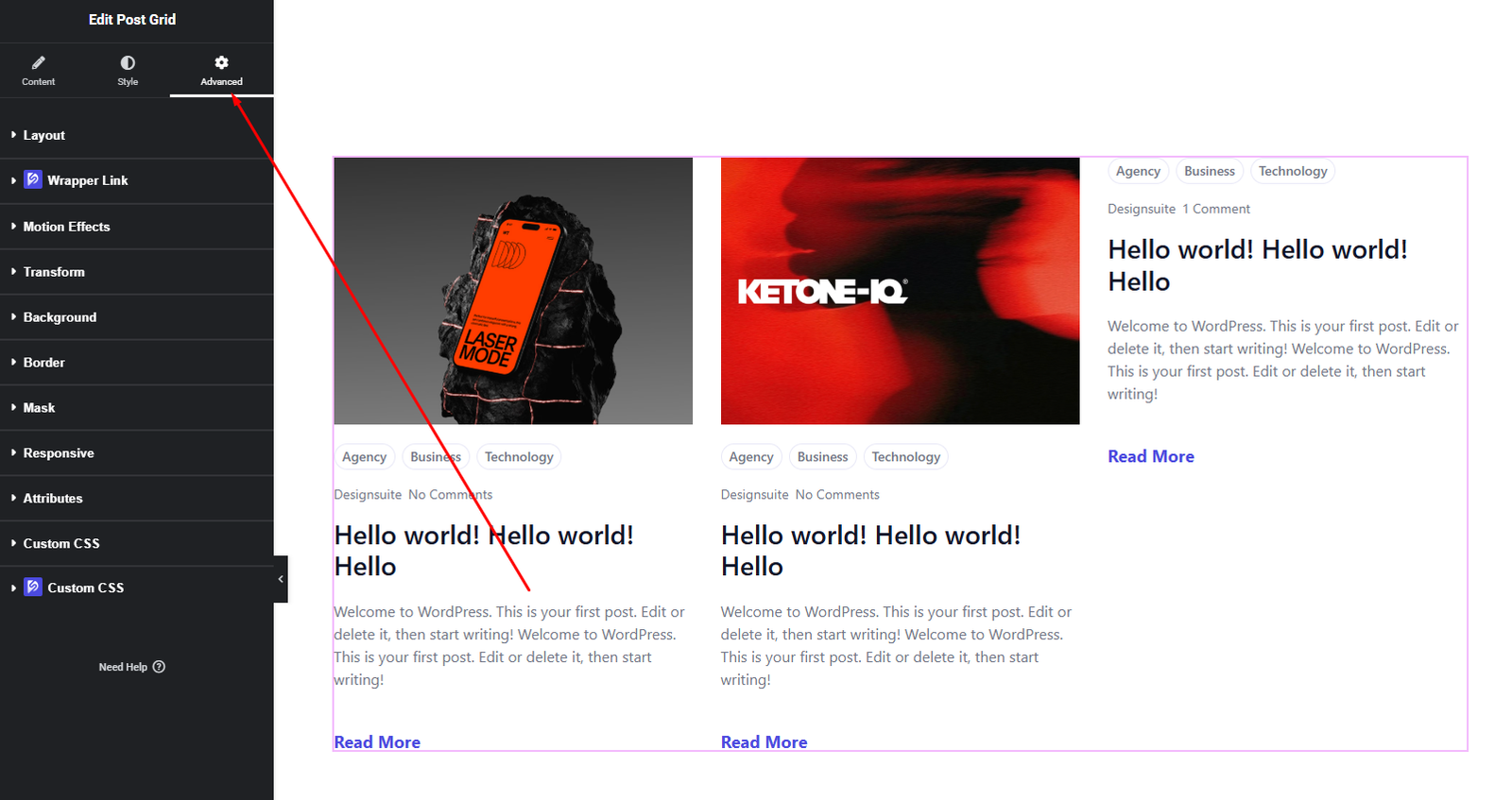
You can configure:
- Margin & Padding
- Background & border settings
- Motion effects
- Responsive visibility
- Custom positioning
Use these options to fine-tune layout spacing and ensure consistent design across all devices.
Final Outcome
Congratulations! 🎉
You’ve successfully configured the DesignSute Post Grid Widget to display dynamic posts in a clean, responsive grid layout. With powerful query types, pagination support, and complete styling control, you can now create professional blog sections, archive layouts, or related post displays with ease.
If you need any further assistance, feel free to contact our support team.


