

Overview
The Image Gallery widget in DesignSute allows you to showcase multiple images in beautifully organized layouts with advanced display and performance options. Whether you’re creating a portfolio, photo showcase, product gallery, or visual storytelling section, this widget gives you full control over layout, ordering, linking, and styling.
With support for grid, masonry, and justified layouts, lazy loading, overlays with icons and content, and flexible styling controls — you can build modern, high-performance image galleries without any extra plugins.
Key Features
- Multiple layout types: Grid, Justified, Masonry
- Image ordering options (Default, Random)
- Lazy Load support for better performance
- Adjustable column settings
- Flexible image linking options
- Custom aspect ratio control
- Image resolution selection
- Overlay support with icon, title, and description
- Separate style controls for image, overlay, and content
- Fully responsive design
Perfect for:
- Portfolio galleries
- Photography showcases
- Product image grids
- Team or event galleries
- Creative visual sections
How to Activate the Image Gallery Widget
Before using the Image Gallery widget, make sure it is enabled from the DesignSute Dashboard.
Steps to Enable:
- Go to DesignSute → Dashboard → Widgets (Tab) in your WordPress dashboard.
- Locate the Image Gallery widget.
- Toggle it ON to enable the widget.
- Save changes if required.
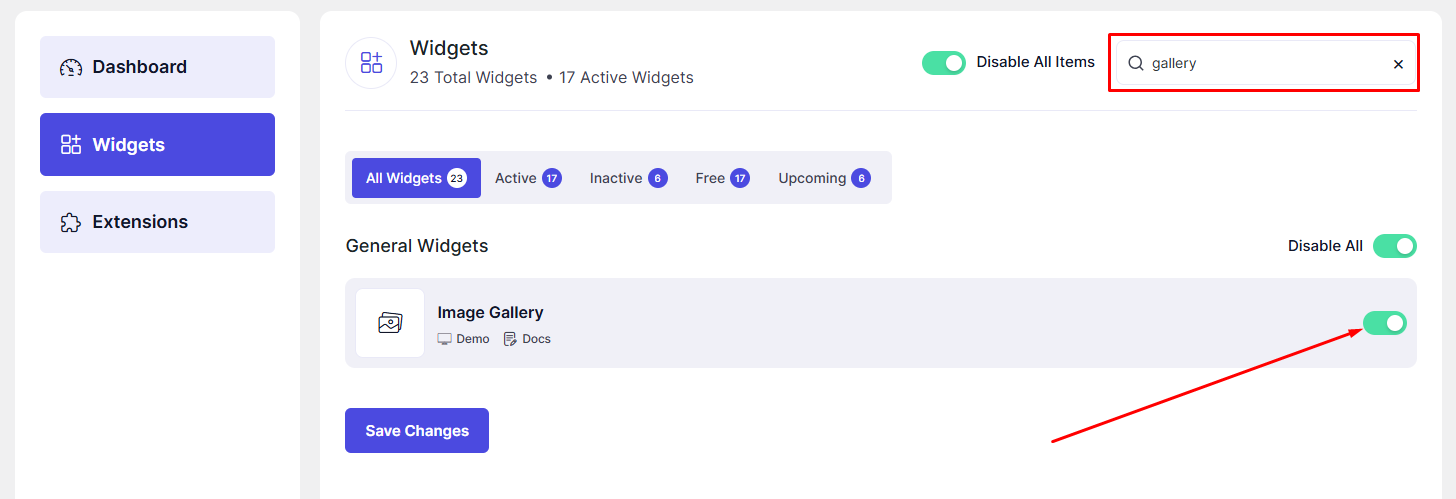
Now, the Image Gallery widget is ready to use in Elementor.
How to Add an Image Gallery Widget in Elementor
- Open your page using the Elementor Editor.
- In the Elementor panel, search for “Image Gallery” under DesignSute widgets.
- Drag and drop the widget into your desired section or column.
- Start adding images and customizing the gallery settings.
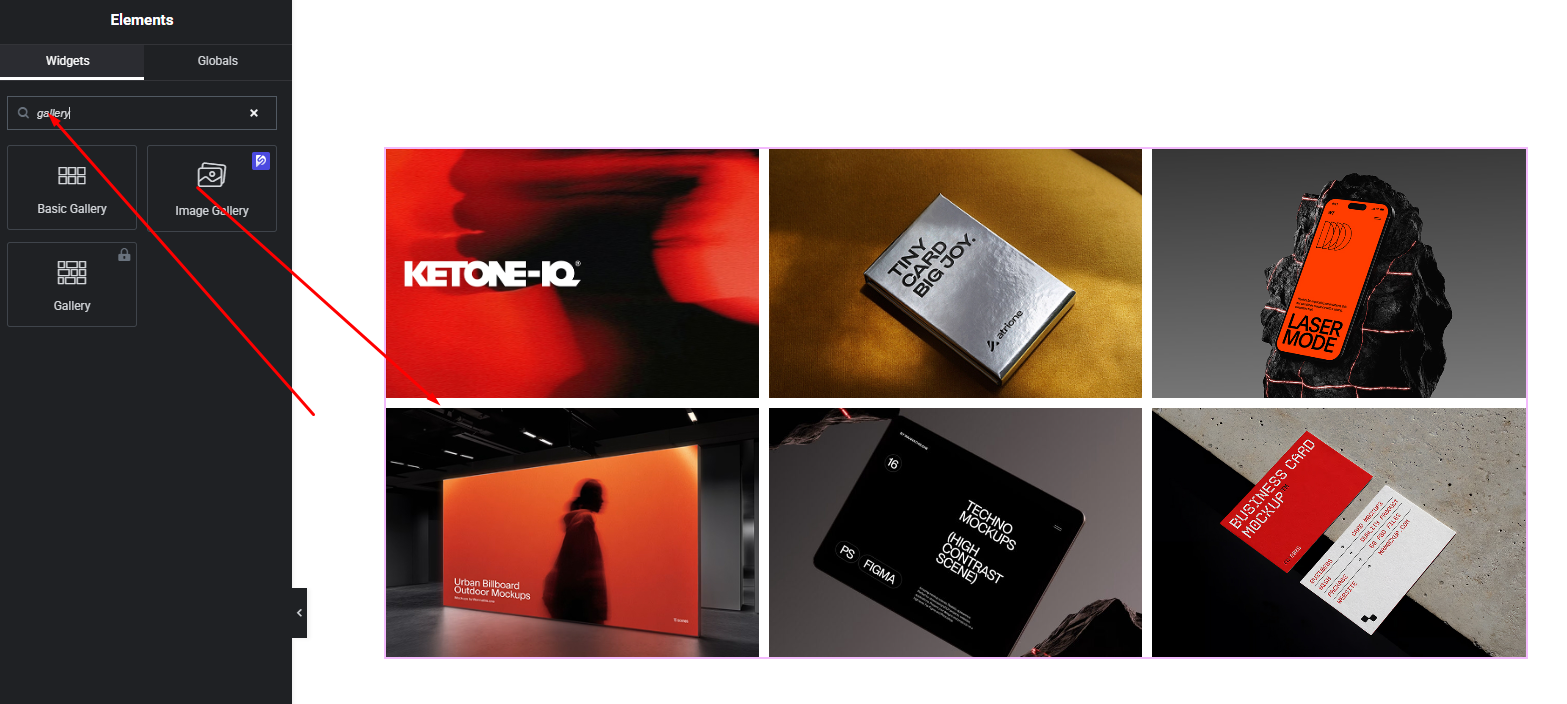
Your Image Gallery widget is now added to the page.
Content Settings
The Content tab allows you to manage images, layout structure, and basic behavior.
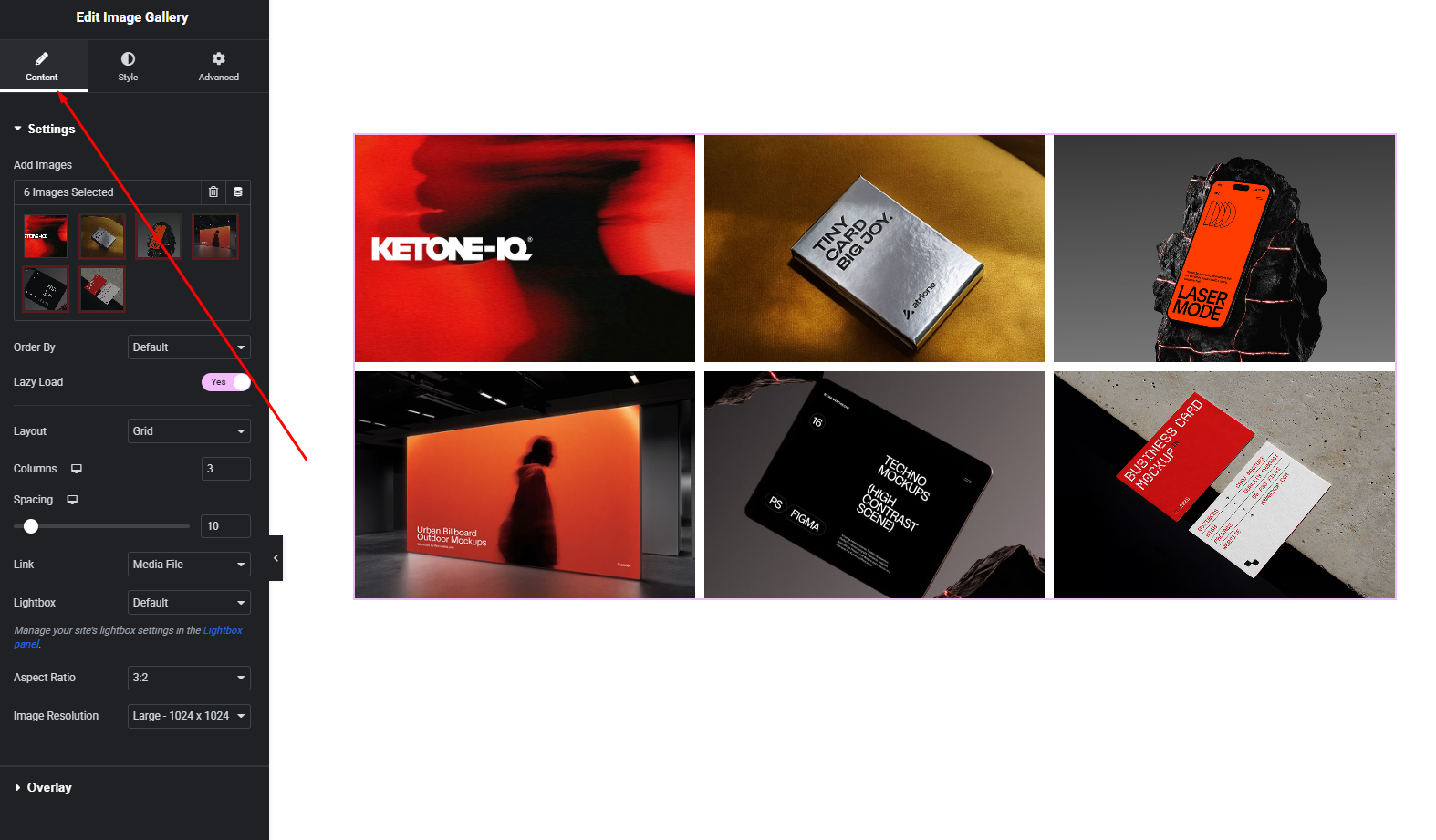
Gallery Options:
- Images – Select or upload multiple images for your gallery.
- Order By – Choose how images are displayed:
- Default
- Random
- Lazy Load – Enable lazy loading to improve page loading performance.
- Layout – Select the gallery layout:
- Grid
- Justified
- Masonry
- Columns – Set the number of columns for grid and masonry layouts.
- Link – Choose how images behave when clicked:
- None
- Media File
- Custom URL (applies to all images)
- Aspect Ratio – Control the image ratio for a consistent layout.
- Image Resolution – Choose the image size for optimal quality and performance.
These options help you structure and optimize your gallery efficiently.
Style Settings
The Style tab provides complete visual customization options.
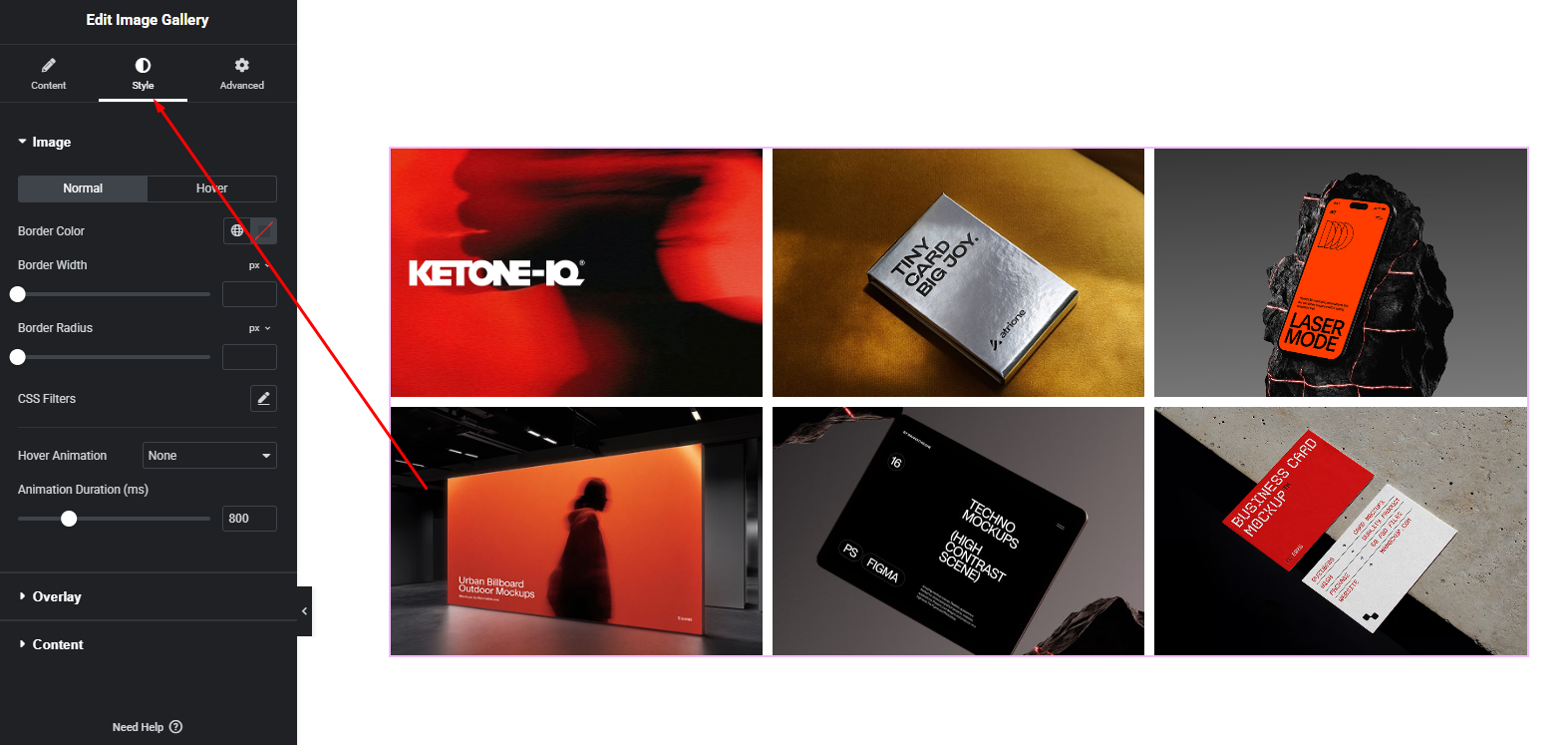
Image Style
- Border & Radius – Customize image borders and rounded corners.
- Spacing – Adjust gap between images.
Overlay Style
- Overlay Enable – Add overlay on hover or always visible.
- Overlay Background – Set background color or gradient.
- Icon – Display an icon on overlay.
- Title & Description – Show image title and description on overlay.
Content Style
- Typography – Customize font styles for title and description.
- Colors – Set text and icon colors.
- Alignment – Align overlay content as needed.
These styling controls allow you to create clean, modern, or artistic gallery designs.
Advanced Settings
The Advanced tab offers additional layout and performance fine-tuning.
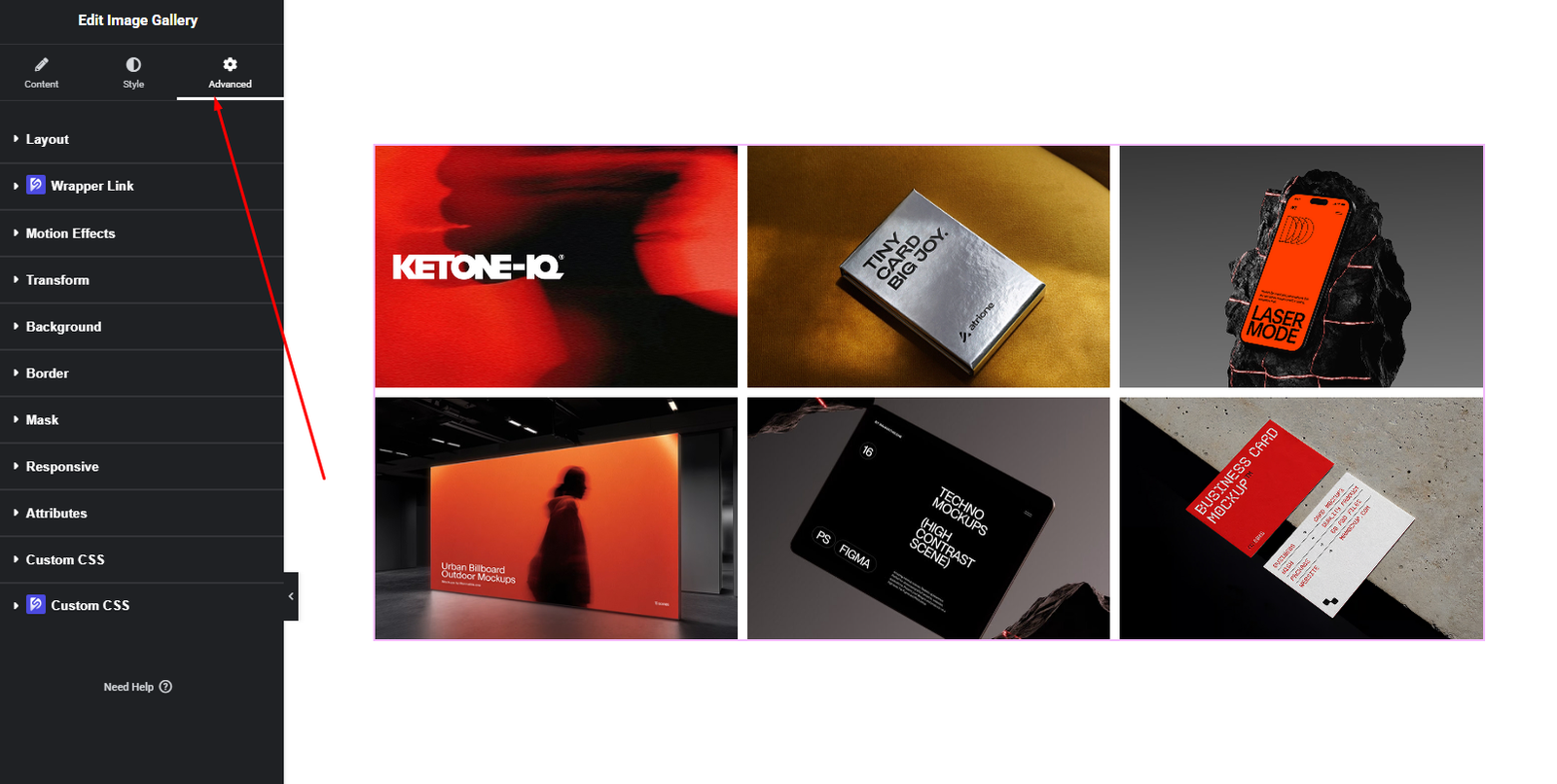
You can configure:
- Margin & Padding
- Responsive visibility controls
- Motion effects
- Background & border options
- Custom CSS classes
Use these settings to ensure your gallery looks perfect across all devices.
Final Outcome
Congratulations! 🎉
You’ve successfully set up the DesignSute Image Gallery Widget to display stunning, responsive image collections. With flexible layouts, overlay content, and performance-focused features like lazy loading, your galleries will look great and load fast on any device.
If you need further assistance or have questions, feel free to reach out to our support team.


