

Overview
The Paragraph widget in DesignSute allows you to add rich, formatted text content anywhere on your website using a powerful WYSIWYG editor. Whether you’re creating blog-style content blocks, service descriptions, feature explanations, or detailed sections — this widget gives you full control over structure and styling.
With built-in alignment options and separate typography & color controls for headings, text, and lists, you can design clean and professional content areas without writing custom CSS.
Key Features
- WYSIWYG (What You See Is What You Get) editor
- Add formatted text, headings, and lists
- Text alignment control
- Separate typography settings for:
- Headings
- Paragraph text
- Lists
- Custom color controls
- Responsive design support
Perfect for:
- About sections
- Service descriptions
- Feature explanations
- Blog-style layouts
- FAQ content blocks
How to Activate the Paragraph Widget
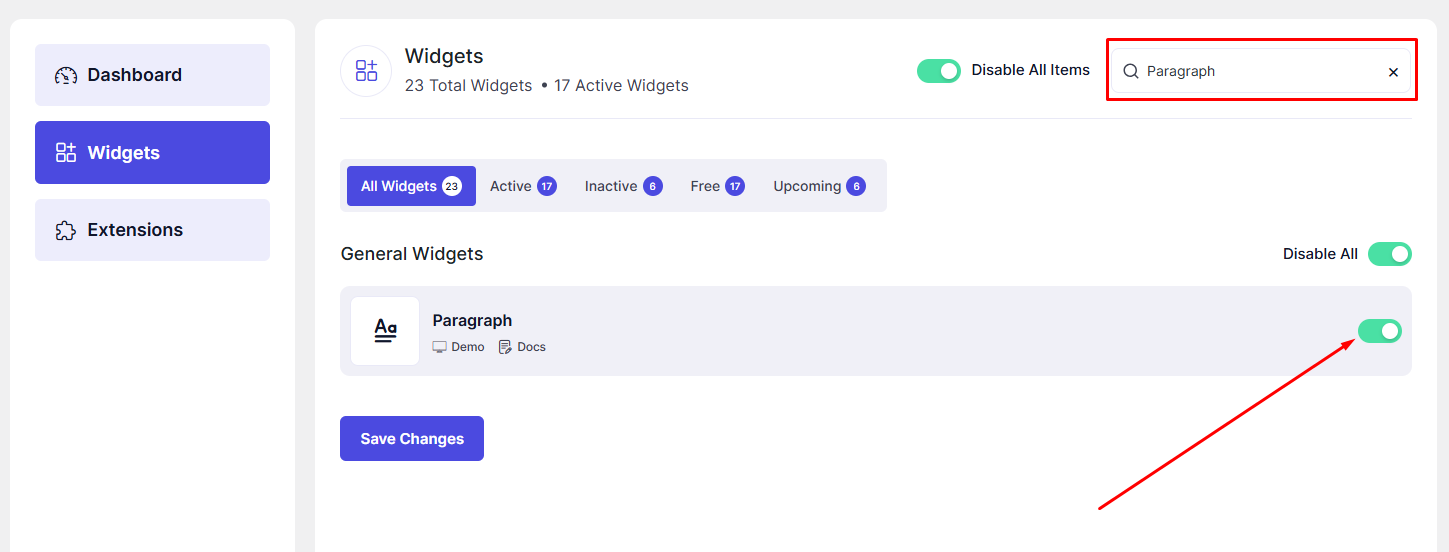
Before using the Paragraph widget, make sure it is enabled from the DesignSute Dashboard.
Steps to Enable:
- Go to DesignSute → Dashboard → Widgets (Tab) in your WordPress dashboard.
- Locate the Paragraph widget.
- Toggle it ON.
- Save changes if required.
Now, the Paragraph widget is ready to use in Elementor.
How to Add a Paragraph Widget in Elementor
- Open your page in the Elementor Editor.
- In the Elementor panel, search for “Paragraph” under DesignSute widgets.
- Drag and drop the widget into your desired section or column.
- Start editing your content using the built-in editor.
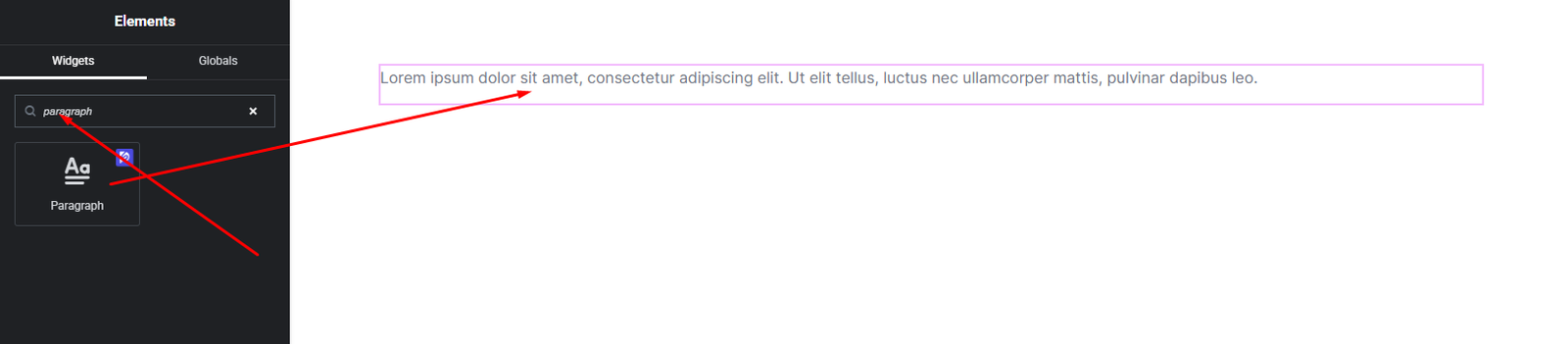
Your Paragraph widget is now ready to customize.
Content Settings
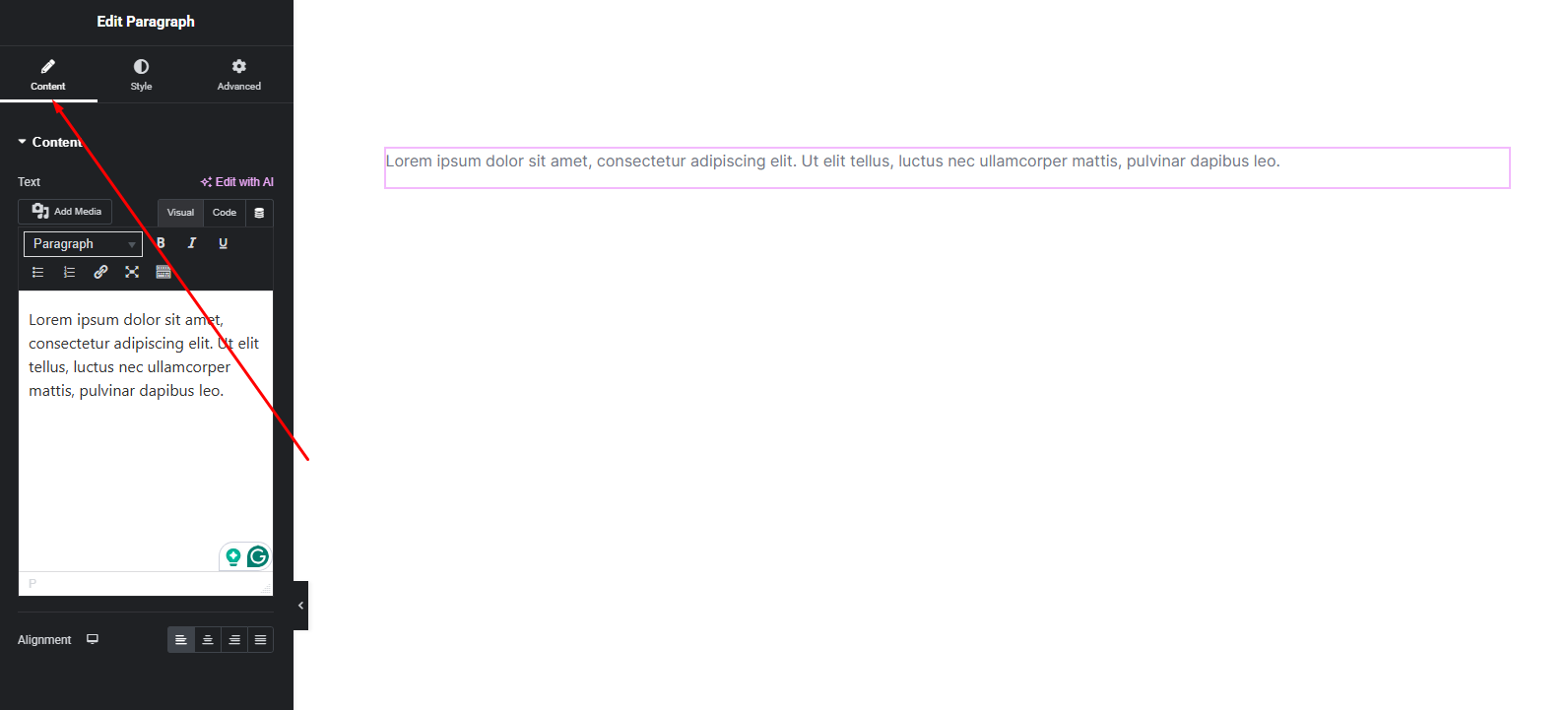
The Content tab allows you to insert and structure your text using a rich text editor.
Available Options:
- WYSIWYG Editor – Add and format your content directly inside the editor. You can:
- Add headings (H1–H6)
- Create paragraphs
- Insert bullet or numbered lists
- Add bold, italic, or linked text
- Structure content clearly
- Alignment – Choose how your content aligns:
- Left
- Center
- Right
- Justified (if available)
These options allow you to structure your content clearly and professionally.
Style Settings
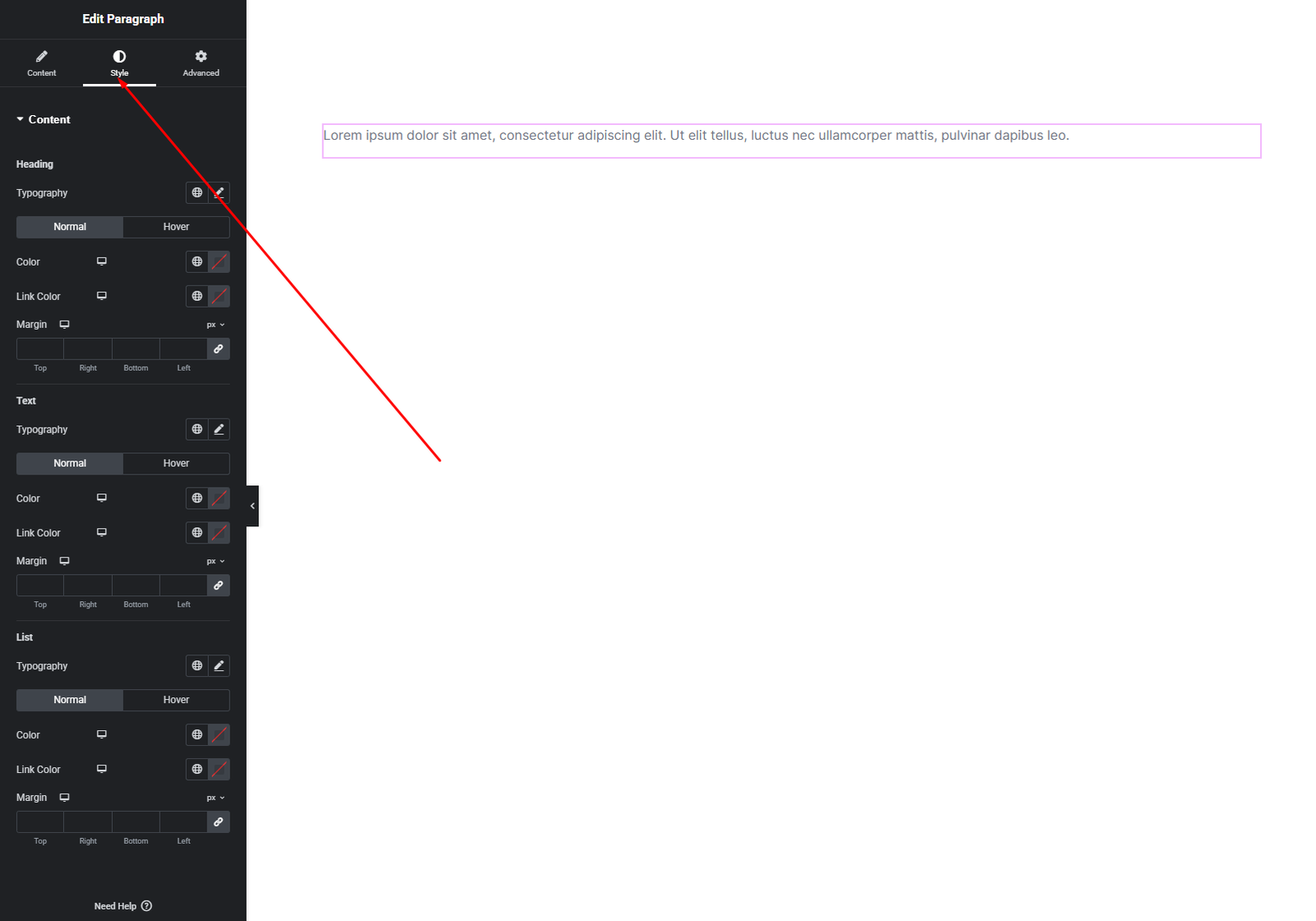
The Style tab gives you complete control over the visual appearance of your content.
Heading Style
Customize all heading elements (H1–H6) inside the editor:
- Typography – Font family, size, weight, line height, letter spacing
- Color – Set heading text color
Text Style
Control regular paragraph text:
- Typography – Adjust readability and spacing
- Color – Set paragraph text color
List Style
Style bullet or numbered lists separately:
- Typography – Customize list text styling
- Color – Set list item color
These separate styling controls allow you to create a clean content hierarchy and improve readability across your website.
Advanced Settings
The Advanced tab provides additional layout and design flexibility.
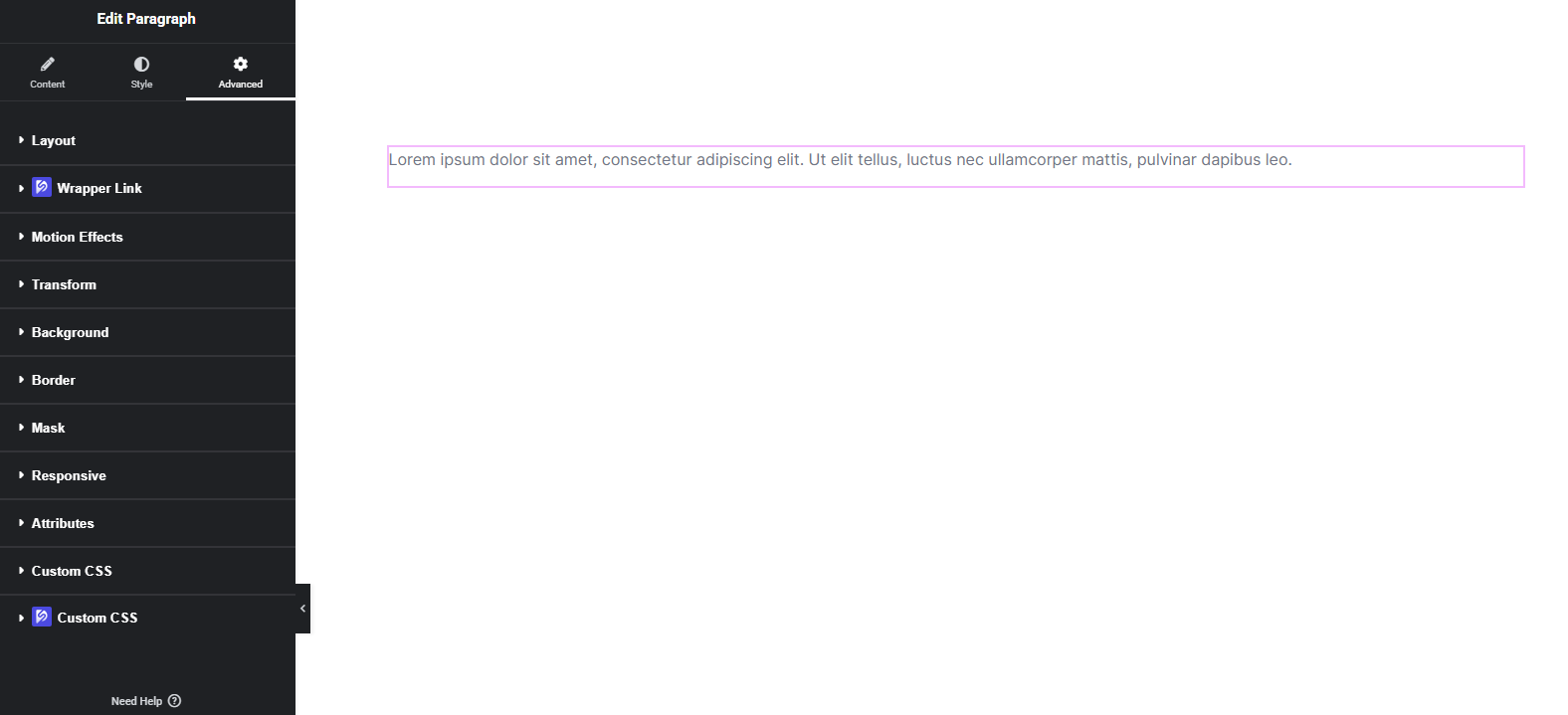
Here you can configure:
- Margin & Padding
- Background options
- Border & box shadow
- Responsive visibility
- Motion effects
- Custom positioning
Use these options to refine spacing and enhance the overall design presentation.
Final Outcome
Congratulations! 🎉
You’ve successfully configured the DesignSute Paragraph Widget to create structured, readable, and beautifully styled content sections. With rich text editing and detailed typography controls, you can now design professional content blocks that match your website’s branding perfectly.
If you need further assistance, feel free to contact our support team.


